Task Editing
Task Editing allows you to modify the details of a task in the AuditBLOOM system. This is useful when you need to update information, make adjustments, or add additional details. Only incomplete tasks can be edited.
What Can Be Edited
When editing a task, you can change the following parameters:
- Task Title
- Task Description
- Priority
- Audit Object
- Assigned Users and Groups
- Deadline
- Observers (users and groups)
How to Edit a Task
Step 1: Open the Task List
- Log in to the system with your account.
- Navigate to the "Tasks" section in the main menu.
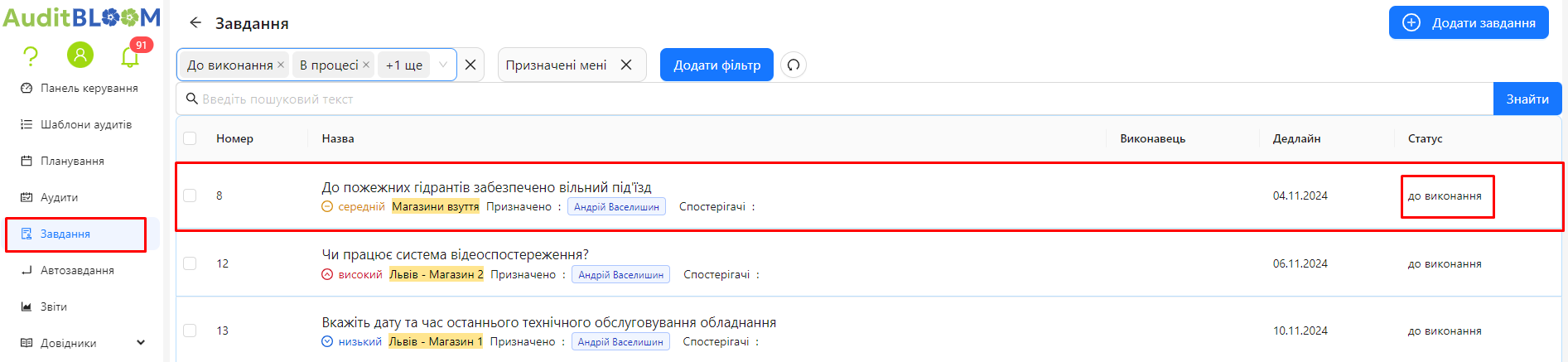
Step 2: Find the Incomplete Task
-
Select the "Active" tab to display incomplete tasks.
-
Find the task that you need to edit.
Step 3: Open the Task for Editing
-
Click on the task name to open it.
-
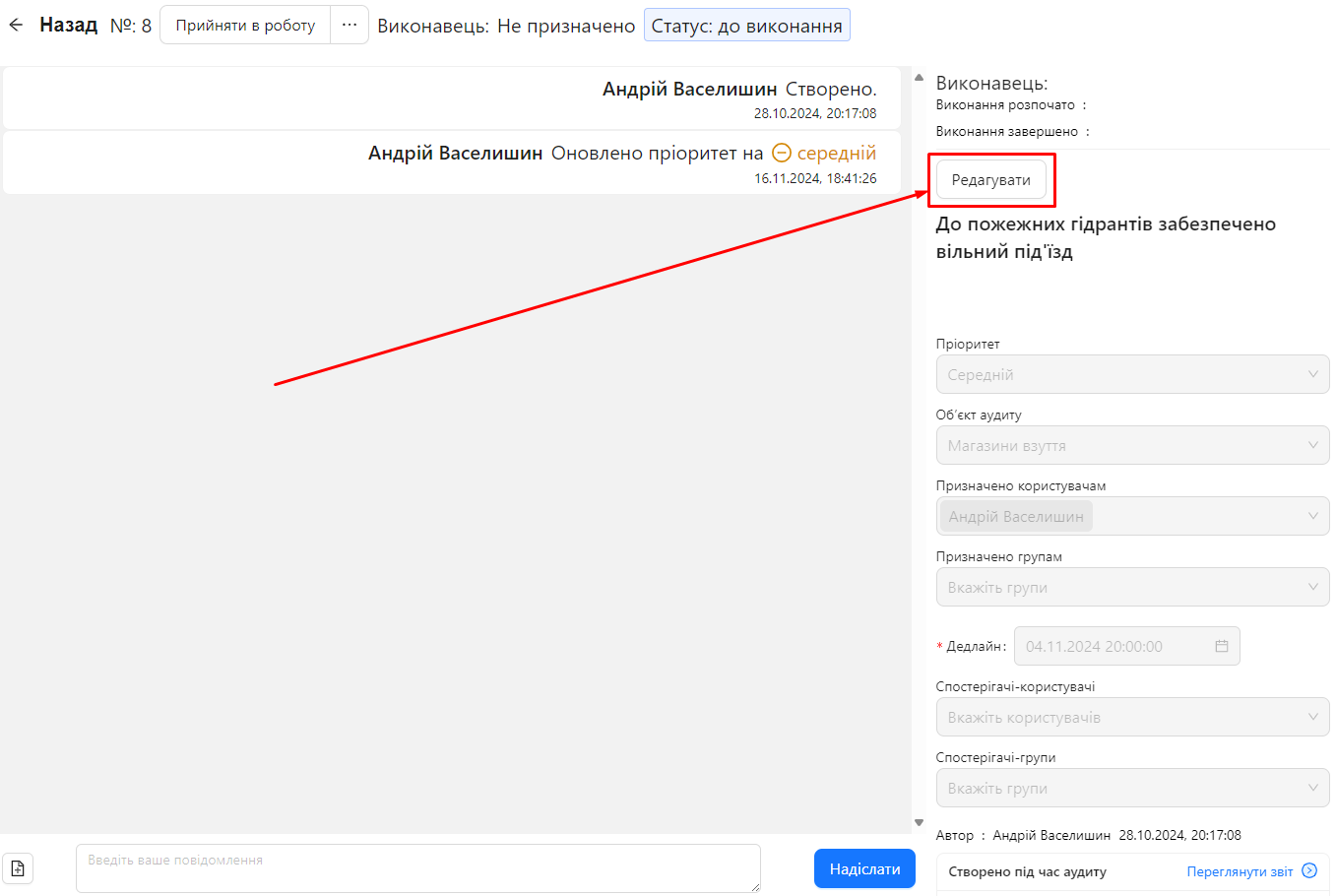
In the right part of the task page, click the "Edit" button.
Step 4: Make the Necessary Changes
- Task Title: Change the title in the corresponding field.
- Task Description: Edit the description by adding or changing the information.
- Priority: Select a new priority from the list (Low, Medium, High).
- Audit Object: Choose a different audit object from the list if needed.
- Assigned Users and Groups: Add or remove users and groups assigned to the task.
- Deadline: Set a new deadline date.
- Observers: Add or remove observers (users and groups).
Step 5: Save Changes
-
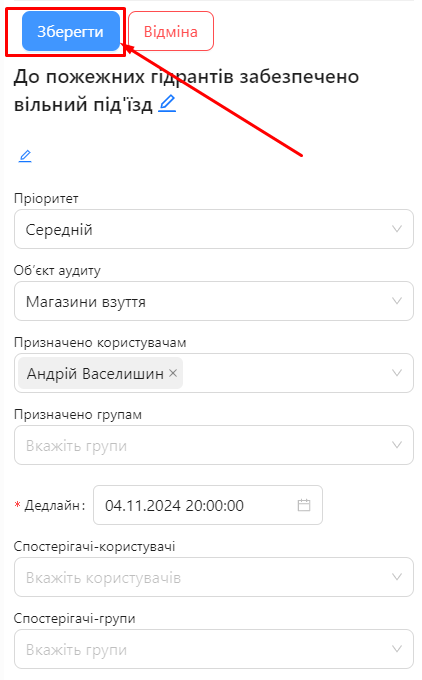
After making all necessary changes, click the "Save" button.
Important Clarifications
- Editing Completed Tasks: Tasks with the status "Completed" or "Cancelled" cannot be edited.
- Access Rights: You must have the appropriate access rights or be the task author to edit the task.
Notes and Tips
- Information Accuracy: Regularly update tasks to ensure the information is up to date and to ensure successful completion.
- Communication: Notify task participants about significant changes through the task chat or other communication channels.
- Deadline Check: When changing the deadline, ensure the new date is realistic and agreed upon by the executors.
Frequently Asked Questions (FAQ)
Question: Why can't I edit the task?
Answer: The task may already be completed or cancelled. Also, make sure you have the necessary access rights to edit the task.
Question: Can I change the task executor while editing?
Answer: You can change the assigned users and groups who can become executors. To change the current executor, use the "Delegate" function.
Question: Can I edit a task if I am not its author?
Answer: Users with the appropriate access rights or the task author can edit the task. If you are not the author, make sure you have the necessary permissions.