Task Deadline
Deadline is the date by which a task must be completed in the AuditBLOOM system. Setting a deadline helps ensure timely task completion and effective time management for the team.
Where the Deadline is Displayed
In the Task List
-
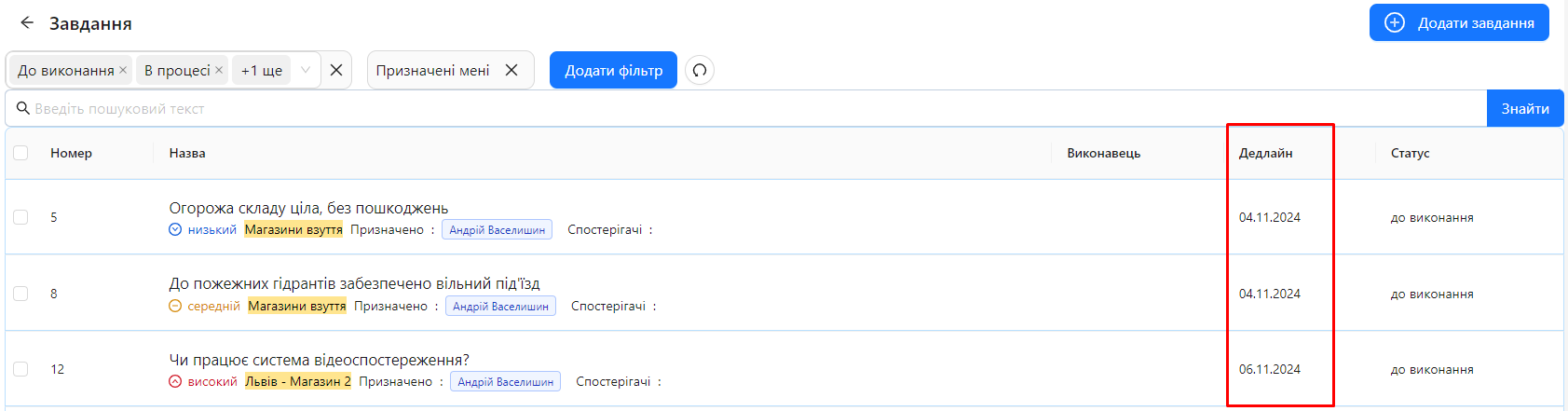
"Deadline" Column: In the task list, the deadline is displayed in the "Deadline" column. This allows for a quick overview of task deadlines without opening task details.
In Task Details
-
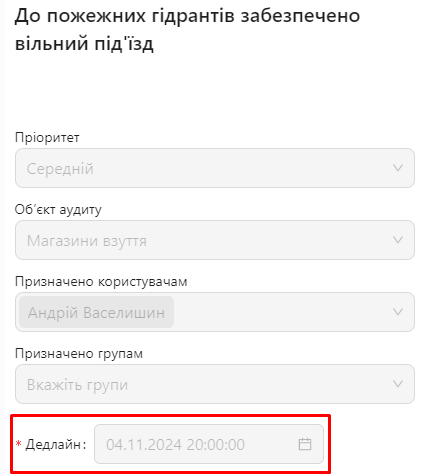
Task Details: The deadline is also displayed in the right section of the task details page, allowing users to see the task's deadline directly when viewing it.
Filtering Tasks by Deadline
You can filter the task list by deadline for easier viewing and management of tasks according to their completion deadlines.
How to Filter Tasks by Deadline
-
Add a Deadline Filter:
-
Go to the "Tasks" section in the main menu.
-
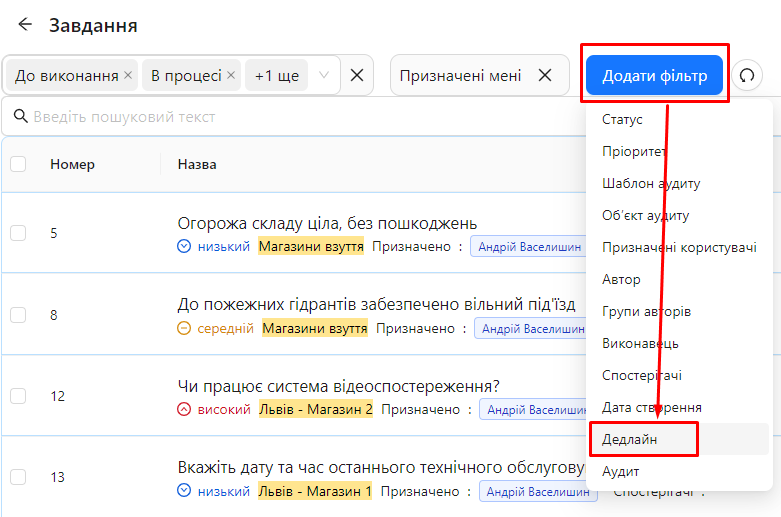
Click on the "Add Filter" button at the top of the task list and select "Deadline".
-
-
Select a Filtering Option:
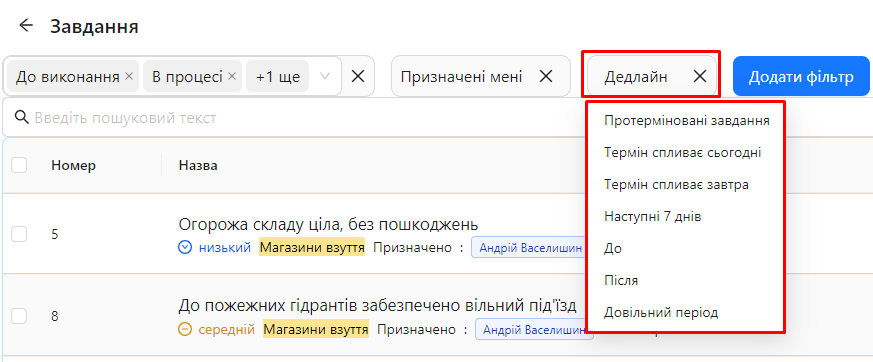
- Choose one of the available deadline filtering options:
-
Overdue Tasks: Tasks whose deadlines have passed.
-
Due Today: Tasks whose deadlines are today.
-
Due Tomorrow: Tasks whose deadlines are tomorrow.
-
Next 7 Days: Tasks whose deadlines are within the next 7 days.
-
By (specific date): Tasks whose deadlines are before a specified date.
-
After (specific date): Tasks whose deadlines are after a specified date.
-
Custom Range (start and end date): Tasks whose deadlines fall within a specified date range.
-
- Choose one of the available deadline filtering options:
-
View Filtered Task List:
- After selecting a filtering option, the system will display tasks that meet the chosen deadline criteria.
Important Clarifications
- Deadline Accuracy: Make sure the deadline is set correctly when creating or editing a task to avoid misunderstandings about the task's completion timeline.
- Flexibility: You can change the task's deadline at any time if new circumstances or needs arise.
Notes and Tips
-
Setting Realistic Deadlines: Choose deadlines that are realistic and achievable to ensure effective task completion without overloading the team.
-
Regular Review: Periodically review task deadlines to adapt them to current conditions and priorities.
-
Communication: Communicate with task assignees about deadlines to ensure they understand the timeline and are ready to meet it.
Frequently Asked Questions (FAQ)
Question: Can I change the deadline of a task after it's created?
Answer: Yes, you can change the deadline of a task at any time by opening it for editing and selecting a new deadline date.
Question: Does the deadline affect the task priority?
Answer: No, the deadline and priority are separate parameters. The priority determines the importance of the task, while the deadline sets its completion date.
Question: Can I view tasks with deadlines in the future?
Answer: Yes, the system allows filtering tasks by future deadlines using options like "Next 7 Days", "By", "After", and "Custom Range".