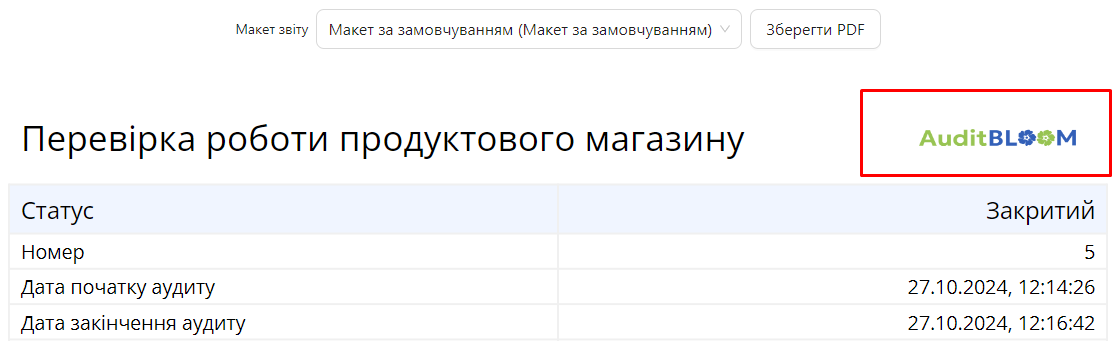
Layout Logo
The Layout Logo allows you to add your company's logo to the audit report. When a logo is added, it appears at the beginning of the report, emphasizing corporate identity and giving the report a professional appearance.
How to Add a Logo to the Report Layout
Requirements. You will need:
One of the roles:
- Administrator
- Template Management
Type of workspace:
- Full workspace.
-
Navigate to the Audit Template:
- Log in to the system with the appropriate access rights.
- Go to the "Audit Templates" section.
- Select the desired audit template.
-
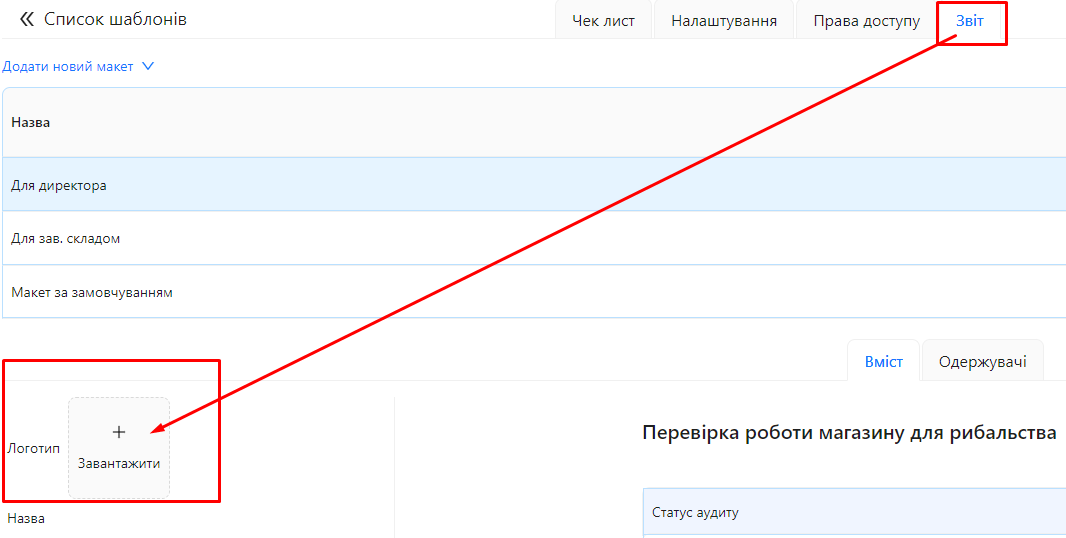
Open the Report Layout:
- On the "Report" tab, locate the layout where you want to add a logo.
- Click on the layout name to open it for editing.
-
Add the Logo:
-
In the layout settings, find the "Logo" section.
-
Click the "Upload" button.
-
Select the logo file from your computer (JPEG and PNG formats are supported).
-
Once selected, the file will be uploaded to the system.
-
How the Logo Appears in the Report
After adding the logo, it will appear at the beginning of the audit report, positioned at the top of the first page.