Add Layout
This article explains how to add a new report layout to an audit template. The layout defines the structure and content of the report generated after completing an audit.
Step-by-Step Guide
Requirements. You will need:
One of the roles:
- Administrator
- Template Management
Type of workspace:
- Full workspace.
Step 1: Access the Audit Template
- Log in to the system with the appropriate access rights.
- Go to the section "Audit Templates".
- Select the audit template to which you want to add a layout.
Step 2: Open the "Report" Tab
- Open the template for editing.
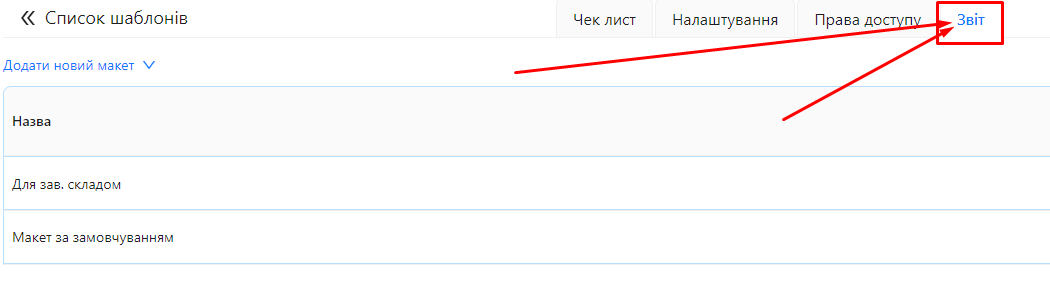
- Navigate to the tab "Report".
Step 3: Add a New Layout
-
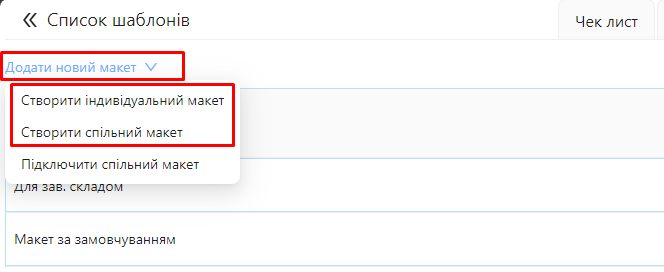
Above the layout table, in the upper left corner, click the button "Add New Layout".
-
A menu will appear with the following options:
-
Create Individual Layout
-
Create Shared Layout
-
Connect Shared Layout (covered in this article)
-
-
Select one of the first two options based on your needs:
- Create Individual Layout: to create a layout that will only be used in this template.
- Create Shared Layout: to create a layout that can be used across other templates.
Step 4: Enter the Layout Name
-
In the form that appears, enter the name of the new layout.

-
Confirm the action by clicking the "Save" button.
Step 5: The System Creates a Default Layout
Once created, the system will automatically add the following default settings to the layout:
-
Enabled Checkboxes:
- Audit Results
- Scores
- Questions with Violations
- Questions with Answers
- Footer (Page Numbers)
-
Dropdown Settings:
- Tasks for Correcting Violations: Do not display
- Photos: 4 photos per page
- Dispute: Do not display
Step 6: Modify Layout Settings if Needed
- Edit the layout if necessary, adjusting the settings according to your requirements.
Step 7: Manage Layouts in the List
In the layout table, you can:
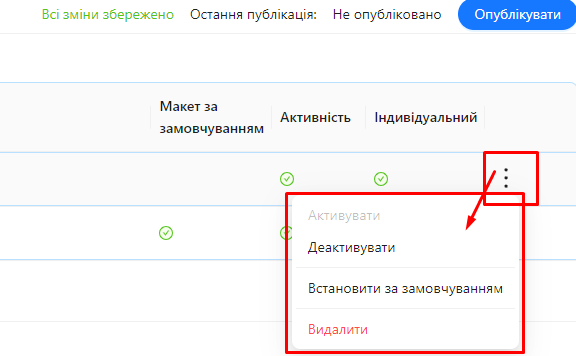
- Set Default Layout: Check the corresponding box next to the layout.
- Deactivate Layout: Uncheck the "Active" box to temporarily disable the layout.
- Delete Individual Layout: Click the "Delete" button next to the layout.
- Disconnect Shared Layout: Click the "Disconnect" button next to the layout.