Default Layout
The Default Layout is a report template that the system automatically uses for generating and distributing reports after an audit is completed. When a layout is set as the default, reports based on this layout are automatically sent to all responsible parties for the audited object without requiring additional configuration.
Using a default layout streamlines the report distribution process and ensures that all necessary individuals receive the report in a standard format.
Purpose
- Automated Report Delivery: Reports using the default layout are automatically sent to responsible parties after an audit is completed.
- Standardized Reports: Ensures a consistent report format for all audits. Shared layouts can also serve as default layouts.
- Simplified Configuration: Removes the need to manually specify recipients for each audit or layout.
How to Set a Default Layout
One of the roles:
- Administrator
- Template Management
Type of workspace:
- Full workspace.
Step 1: Access the List of Layouts
- Log in to the system with the appropriate access rights.
- Navigate to the section "Audit Templates".
- Select the audit template for which you want to set a default layout.
- Open the tab "Report" within the template.
- Locate the table listing the available report layouts.
Step 2: Set a Default Layout
-
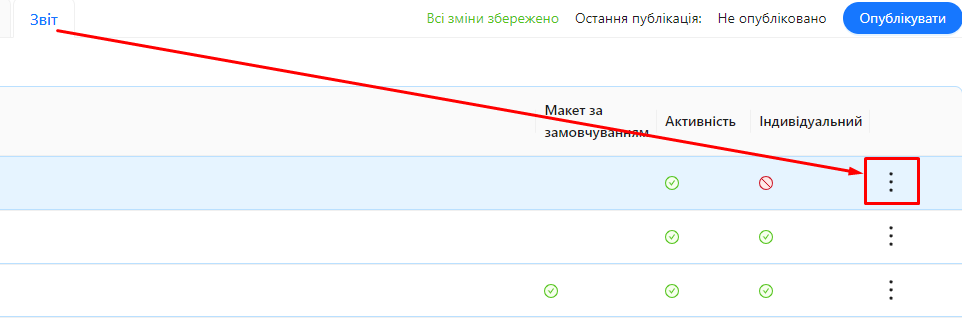
In the list of layouts, find the button with three vertical dots next to the layout name.
-
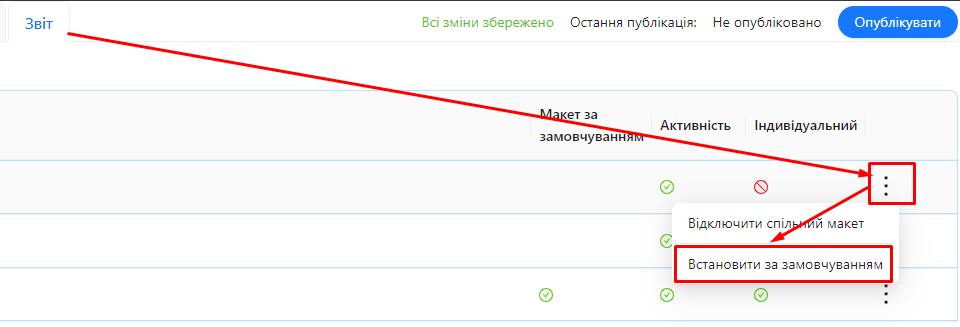
Click this button to open the actions menu.
-
Select the option "Set as Default".
-
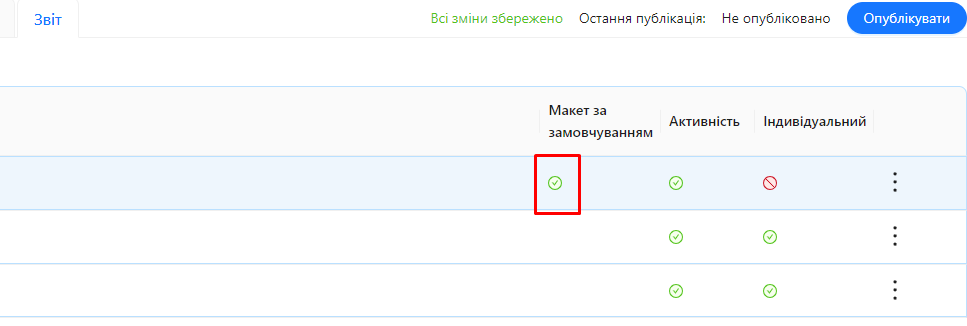
Verify that the layout is set as default. A corresponding label will appear next to this layout in the table.
Notes
- Only one layout can be set as the default for each audit template.
- If you set a different layout as the default, the previous default layout will lose its status.
Key Points
- Automatic Delivery: Reports using the default layout are sent to responsible parties for the audit object without additional configuration.
- Layout Recipients: In addition to the responsible parties, you can configure additional recipients within the layout on the "Recipients" tab.
- Changing the Default Layout: You can update the default layout at any time by setting another layout as default.
Why This Matters
- Efficiency: Simplifies the report delivery process, ensuring that all necessary individuals receive the reports without extra steps.
- Confidentiality: Controls which layout is used for automatic distribution, which is important for reports containing sensitive information.
- Flexibility: Allows quick changes to report format and content by updating the default layout.
Notes and Tips
- Verify Layout Settings: Before setting a layout as default, ensure it contains all the necessary information and is properly configured.
- Notify Colleagues: If you change the default layout, inform your colleagues to avoid misunderstandings.
- Testing: It's recommended to generate a report using the new layout for previously completed audits to verify its appearance.
Frequently Asked Questions (FAQ)
Question: Can I have multiple default layouts for a single template?
Answer: No, each audit template can only have one default layout.
Question: What happens to the previous default layout if I set a new one?
Answer: The previous default layout will lose its status, and reports will automatically use the new default layout.
Question: Can I remove the default designation from a layout?
Answer: You can assign another layout as the default, which will automatically remove the default status from the previous one.
Question: Will users not listed as recipients receive the default layout report?
Answer: Yes, the default layout report is automatically sent to all responsible parties for the audited object, even if they are not explicitly listed as recipients in the layout.
Question: How are responsible parties for the audit object determined?
Answer: Responsible users are set in the audit object configuration and can include individual users or user groups.
Question: Can I set a shared layout as the default layout?
Answer: Yes, shared layouts can be set as the default layout for a specific template.
Question: Does changing the default layout affect reports for past audits?
Answer: No, past reports remain unaffected. However, you can manually generate reports using the updated layout for previously completed audits from the audit list.
Question: Do I need to configure recipients for the default layout?
Answer: Not necessarily. Reports using the default layout are automatically sent to the responsible parties for the audit object. However, you can add additional recipients in the layout settings.