Bell
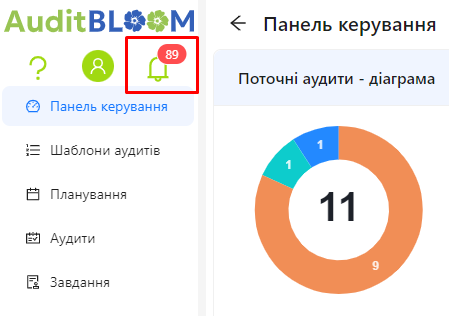
Bell is a user interface element in the AuditBLOOM system that displays notifications about important events. It is located in the top left corner of the screen and appears as a green bell icon with a number of unread messages on a red background.
How the Bell Works
-
Number of Unread Messages: The number on the icon shows how many notifications you haven't read yet.
-
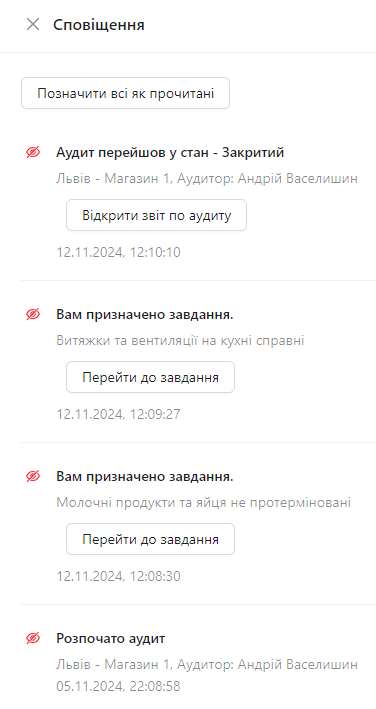
Opening Notifications: Click on the bell icon to open a window with notifications that will appear on the right.
-
Viewing Notifications: The window shows all your notifications from the past 7 days.
-
Notification Status:
- Unread notifications are marked with a red icon.
- Read notifications are marked with a green icon.
-
Marking a Notification as Read: Click on the notification to view it. It will automatically be marked as read.
-
Action Buttons: Some notifications may contain buttons for quick access to related objects:
- "Open Audit Report"
- "Review Dispute"
- "Review Audit"
- "Go to Task"
Click the relevant button to go to the required section of the system.
-
Mark All as Read: On the first page of notifications, there is a "Mark All as Read" button, which allows you to quickly mark all notifications as read.
-
Pagination: If there are more than 10 notifications, pagination will appear at the bottom of the window to navigate between pages.
Notification Retention Period
- Retention Period: Notifications are kept in the bell for 7 days from the moment they are received.
- Automatic Deletion: After this period, notifications are automatically deleted by the system to avoid cluttering the interface and to focus on current events.
Notification Settings
You can configure which notifications to receive and how.
- Go to notification settings in your profile: Notification Settings
- Choose Events: Set up notifications for different events.
- Choose Delivery Method: Set your preferred notification methods (Email, Push, Bell).
Notes and Tips
-
Regularly Check Notifications: This will help you stay up-to-date with important events and tasks.
-
Customize Your Notifications: Turn off unnecessary notifications to avoid distractions and enable those important to you.
-
Use Action Buttons: These are a quick way to access the necessary section of the system and save time.
Frequently Asked Questions (FAQ)
Question: Why am I not receiving notifications in the bell?
Answer: Check your notification settings in your profile and make sure the "Allow user notifications" option is enabled, and the desired event notifications are set to Bell.
Question: Can I restore a notification that was deleted after 7 days?
Answer: No, after the retention period ends, the notification is automatically deleted and cannot be restored.
Question: How do I turn off notifications for specific events?
Answer: Go to notification settings in your profile and turn off notifications for the relevant events.
Question: What do the different icons next to the notifications mean?
Answer: The red icon indicates that the notification is unread, while the green one indicates that you have already read it.