Creating a New Template Based on an Existing Template from the Public Template Library
In this article, we will explore how to create a new audit template based on an existing template from the public template library. This allows you to quickly start working by using ready-made, verified checklists and customize them to fit your organization's specifics.
Step-by-Step Guide
One of the roles:
- Administrator
- Template Management
Workplace Type:
- Full workplace.
Step 1: Go to the Template List
-
Log in to the system with the appropriate access rights.
-
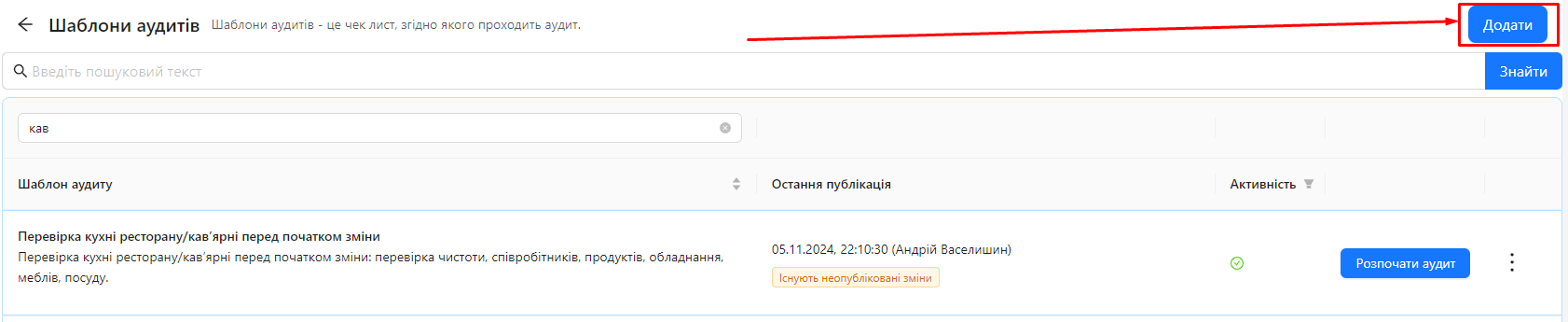
Navigate to the "Audit Templates" section in the main menu.
-
Click the "Add" button to create a new template.
Step 2: Open the Form for Adding a New Template
After clicking the "Add" button, the system will open the form for adding a new template.
Step 3: Review the Template Library
In the form for adding a new template, there are two sections:
-
Create an Empty Template: An option to create a template from scratch.
-
Template Library: Located below, containing:
-
Search Bar: To search for a specific template by name or description.
-
Template Table: Displays a list of available templates with the following columns:
- Template Name
- Description
- Industry
-
Step 4: Find the Desired Template
-
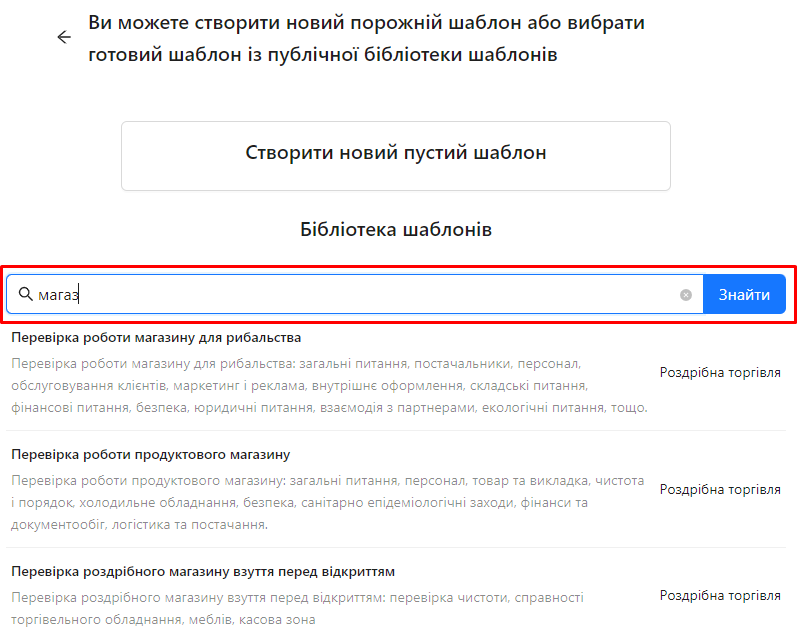
Enter keywords in the search bar to find the template you need.
For example, if you're looking for a store audit template, enter "store" or "shop".
-
Review the list of templates that match your query.
Step 5: Open the Template Preview
-
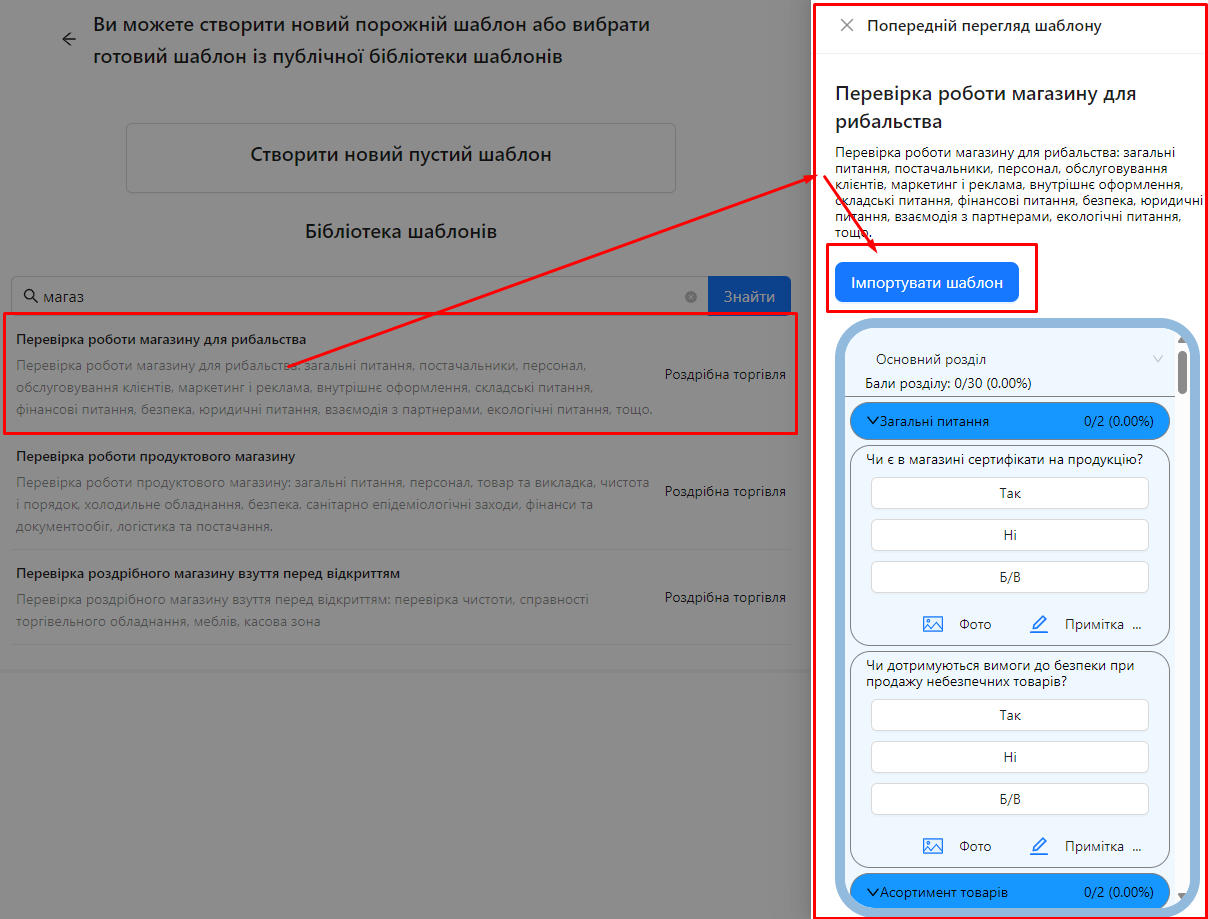
Click the name of the selected template in the table.
-
The system will open the template preview form.
- In this form, you can review the structure of the template, its sections, and questions.
Step 6: Import the Template
-
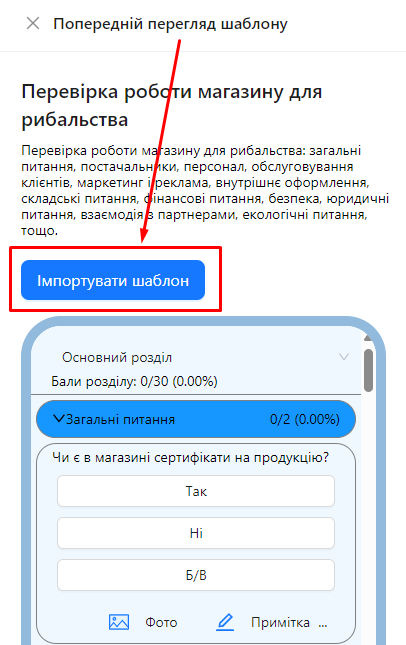
After reviewing the template, click the "Import Template" button located at the top or bottom of the form.
Step 7: Edit the Imported Template
-
The system will create a copy of the selected template and open it for editing.
- Now the template is in your personal templates, and you can make changes to it.
-
Review and adjust the template according to your organization's needs:
- Change section and category names.
- Edit questions or add new ones.
- Set scores, evaluation criteria, and other parameters.
Step 8: Use the New Template for Auditing
- Now your new template is ready to use. Publish it.
Notes and Tips
-
Template Customization: Be sure to review the imported template and customize it to fit the specifics of your organization to ensure the audit's relevance and accuracy.
-
Template Updates: Remember that the template from the library might be general. Add specific questions or remove unnecessary ones to make it more relevant.
-
Following Standards: If you follow specific industry standards or regulatory requirements, make sure the template complies with those standards.
Frequently Asked Questions (FAQ)
Question: Can I import multiple templates from the library?
Answer: Yes, you can import as many templates as you need and edit each one separately.
Question: Will the original template in the library change if I edit my copy?
Answer: No, any changes you make will only affect your copy of the template. The original template in the library will remain unchanged.
Question: Can I share my edited template with other users?
Answer: Yes, you can add your template to the public library or grant access to specific users within your organization.
Question: Do I need to pay to use templates from the library?
Answer: No, using templates from the public library is free of charge.
Question: Why can't I see some templates in the library?
Answer: Filters or search criteria might limit the display of templates. Make sure the search criteria are correct.