Starting an Audit from a Template
Starting an audit from a template allows you to begin an audit without prior scheduling, using the available audit templates. This feature is helpful for immediate or unscheduled checks.
How to Start an Audit from a Template
Audit access:
- You must have access to conduct an audit using the specific template on the selected audit object.
Step 1: Navigate to the Audit Templates List
-
Log in to the system with your account.
-
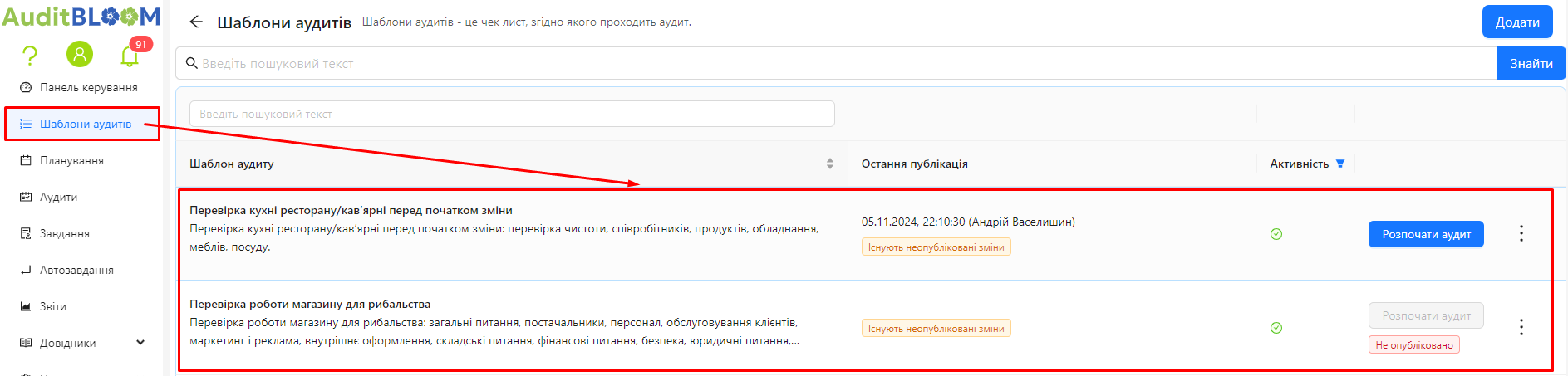
In the main menu, select the "Audit Templates" section.
-
The list of templates you have access to will open.
Note: You will only see templates to which you have been granted access.
Step 2: Find the Desired Template
- Browse the list or use the search feature to locate the desired template.
- Ensure the template matches the type of audit you need.
Step 3: Start an Audit from the Template
-
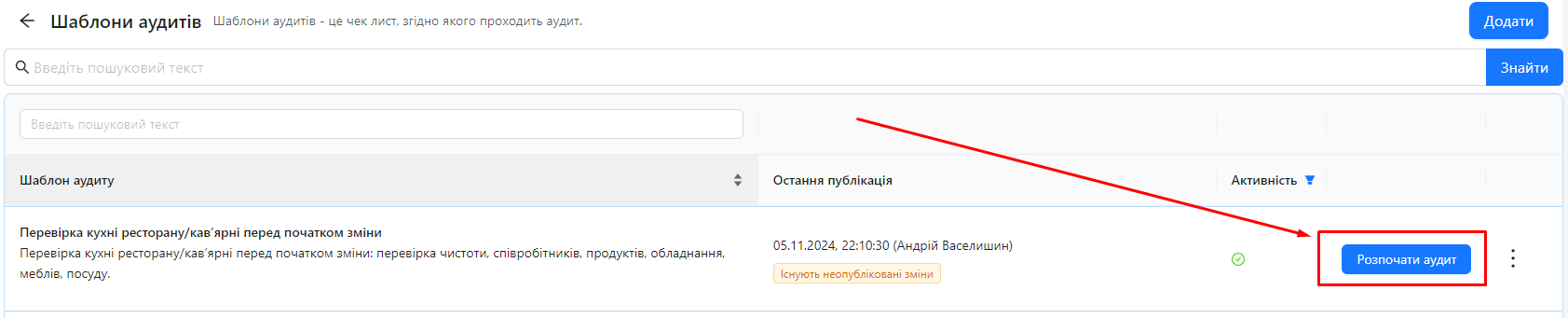
Locate the "Start Audit" button on the right side of the template name.
-
Click the "Start Audit" button.
Step 4: Specify the Audit Object
-
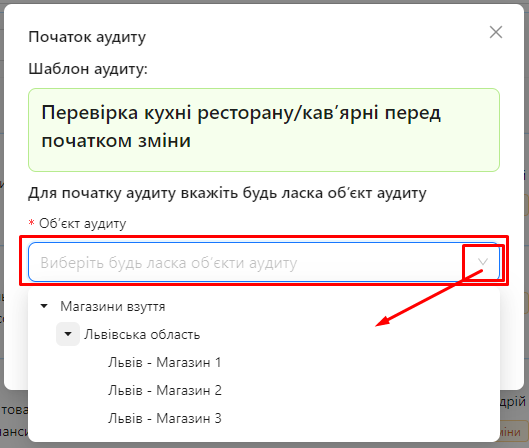
A window will open, prompting you to select the audit object where you wish to conduct the audit.
-
Choose the object from the list of available options.
-
Confirm your selection by clicking the "Start Audit" button.
Step 5: Access Verification
-
The system will verify if you have the rights to start an audit using the selected template on the chosen audit object.
-
If you have the rights:
-
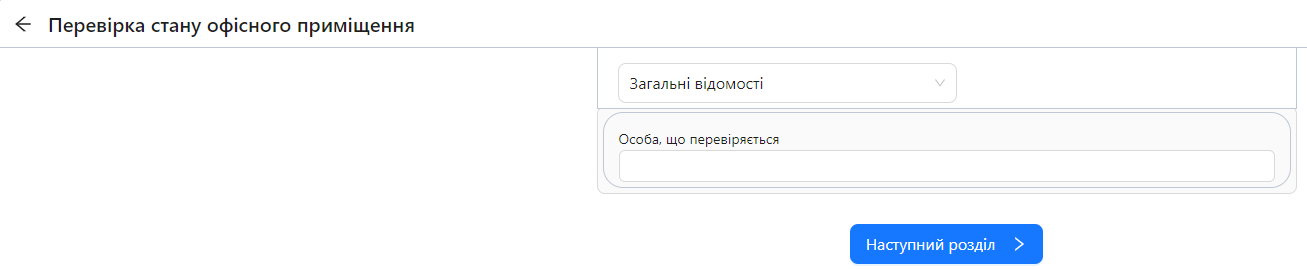
The audit will begin automatically.
-
The first section of questions will be displayed.
-
-
If you do not have the rights:
- The system will notify you that you lack the necessary permissions to conduct this audit on the selected object.
- Contact your administrator to obtain the required access.
Notes and Tips
- Template Access: If you do not see the desired template, you might not have access to it. Contact your administrator to request permissions.
- Audit Objects: You can only conduct audits on objects for which you have been granted access in the selected template.
- Saving Progress: You can save your answers and return to the audit later if needed.