Top Bar
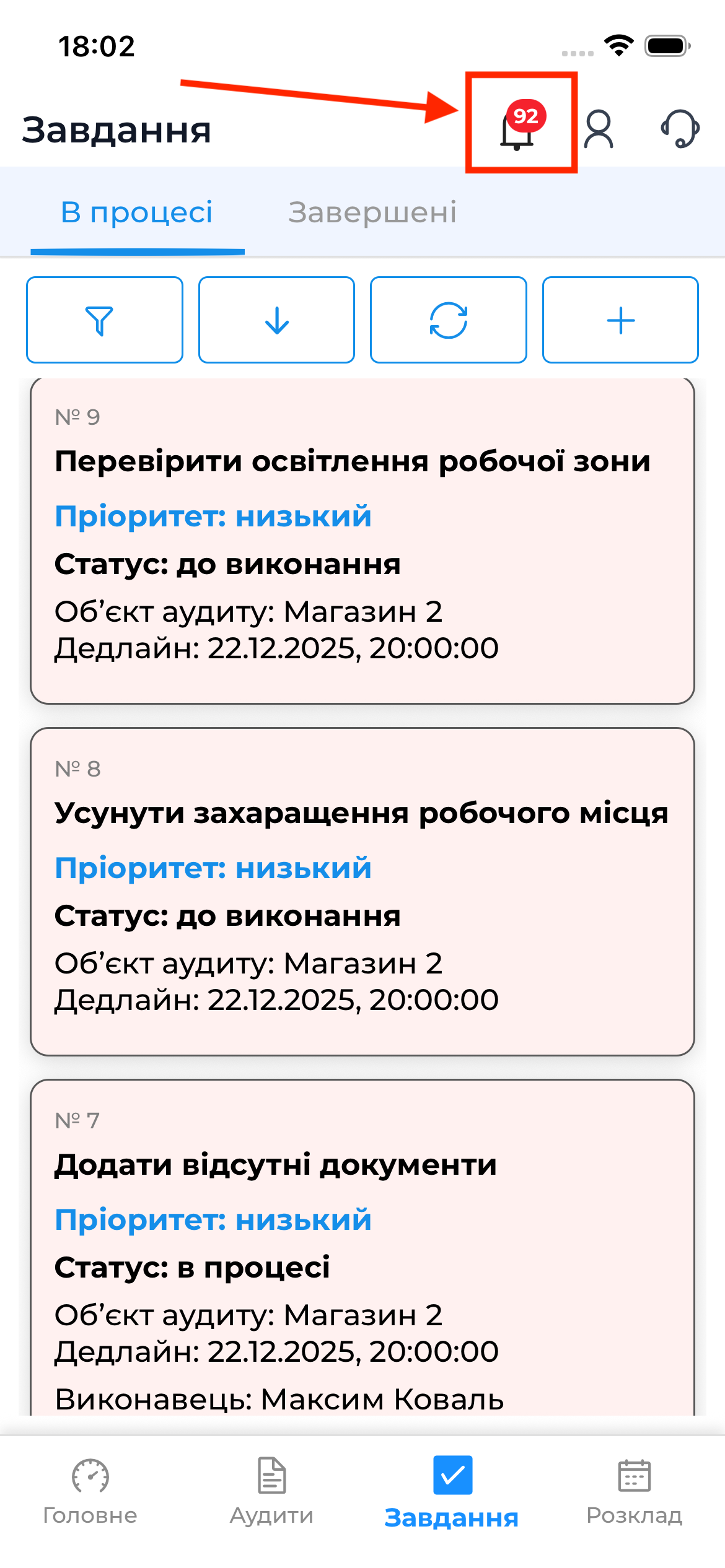
The top bar in the AuditBLOOM mobile app provides quick access to notifications, the user profile, and the support service. It is available on most screens of the app and is used for fast interaction with the system.
Top Bar Components
The top bar consists of the following main elements:
- Notifications icon (bell)
- User profile
- Support access
The position and appearance of these elements may vary slightly depending on the platform (iOS / Android).
Notifications (Bell)
The bell icon opens the list of in-app notifications.
What Appears in Notifications
In the notifications list, you may see, for example:
- information about new or updated audits
- messages about the opening or review of disputes
- task status updates
- and more. The full list can be viewed in the notification settings in the user profile.
Notifications in the bell are an in-app equivalent of push notifications, but are always available directly inside the app.
User Profile
Tapping the user profile icon opens the personal settings section.
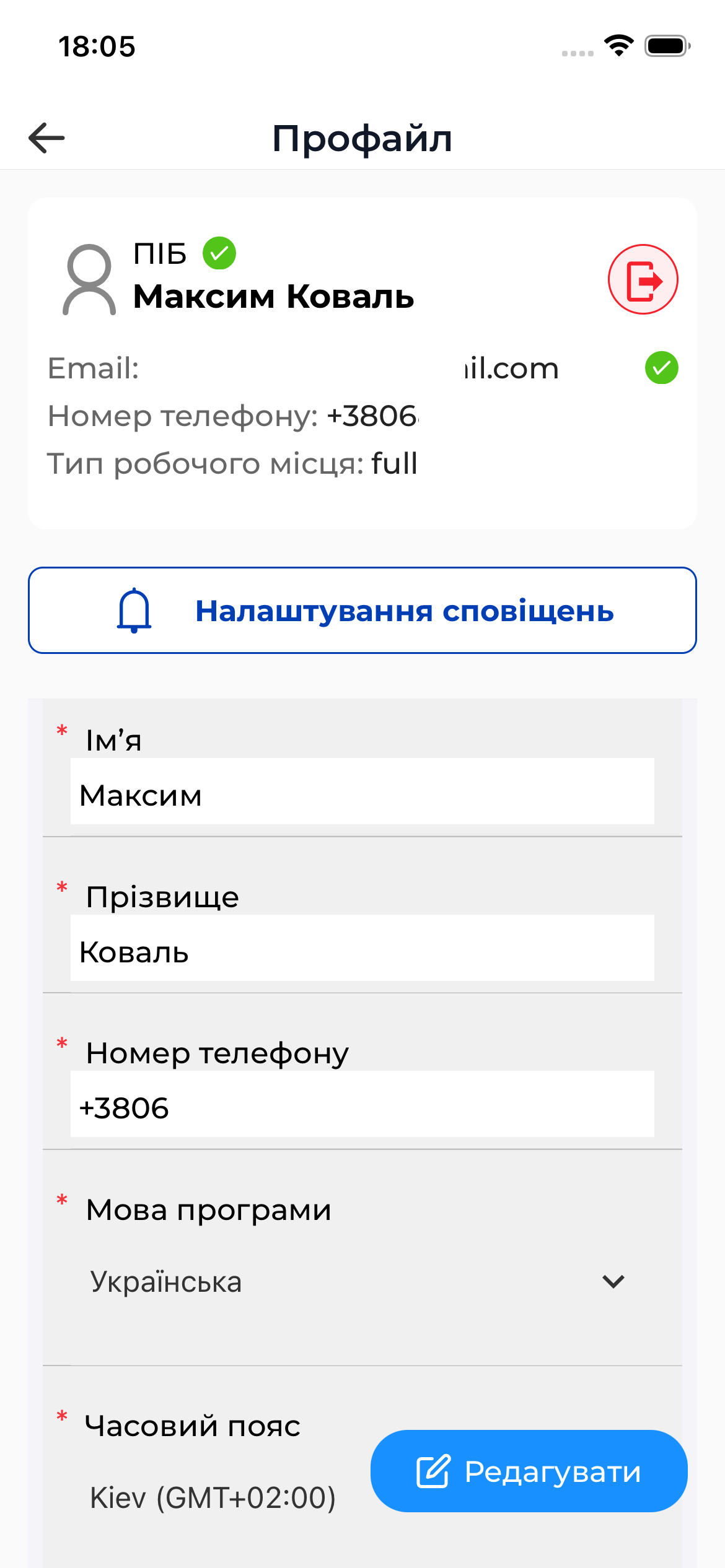
In the profile, the user can:
- view and edit first name, last name, phone number, language, and time zone
- access notification settings
- view information about their account
Support Access
The top bar also provides quick access to the support service.
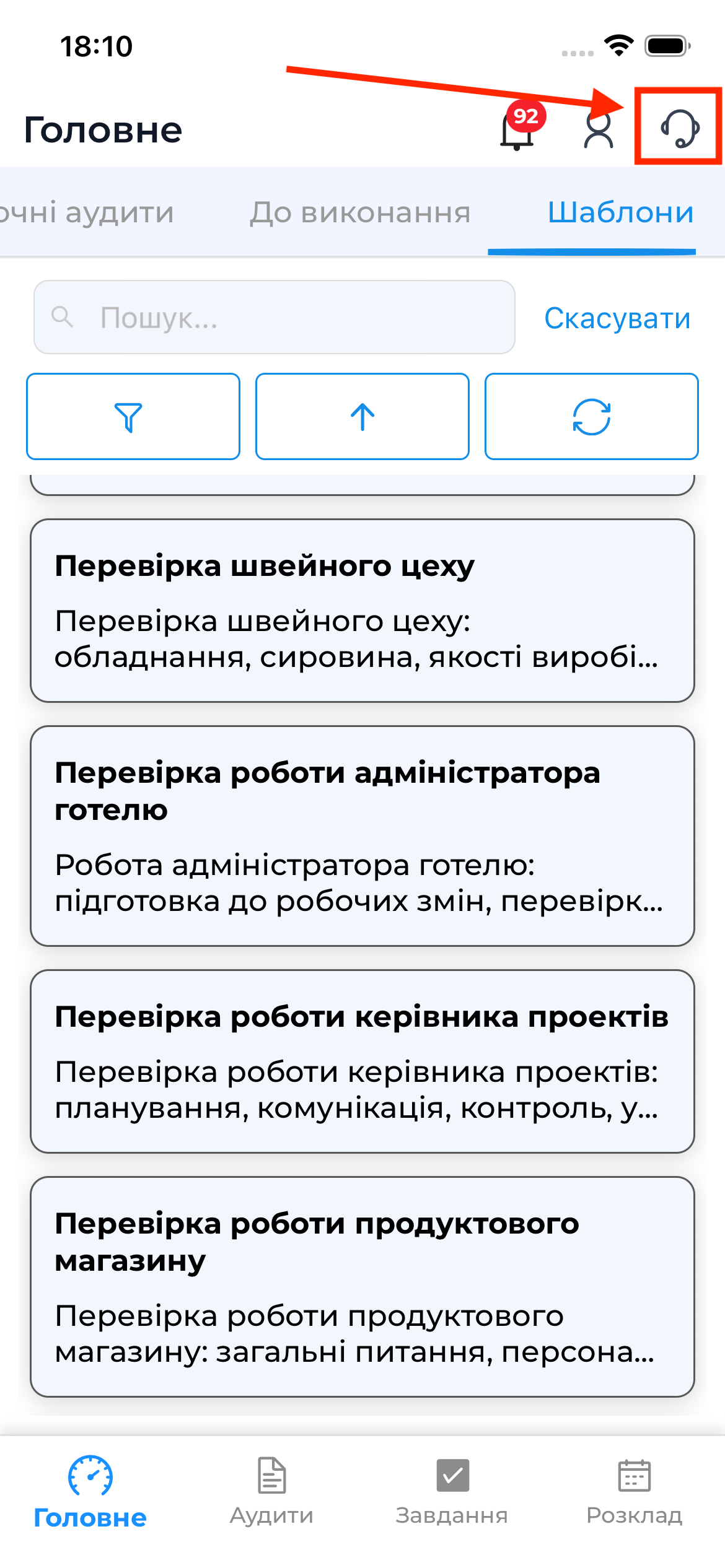
In the support section, you can:
- view the list of support requests
- create a new request
- communicate within an existing request
This is the main communication channel with the AuditBLOOM support team without leaving the mobile app.
Important to Know
- The top bar works only in online mode
- In-app notifications are synchronized with the server
- Push notifications are an additional channel and do not replace the in-app notification bell
The following sections of the documentation provide detailed descriptions of working with notifications, the user profile, and the support service.