General Interface Structure
The AuditBLOOM mobile app features a simple and logical interface structure designed for fast auditor workflows and a minimal number of actions to complete core scenarios.
The interface consists of three key elements:
- Top bar
- Main workspace
- Bottom navigation (tabs)
Main Interface Elements
Top Bar
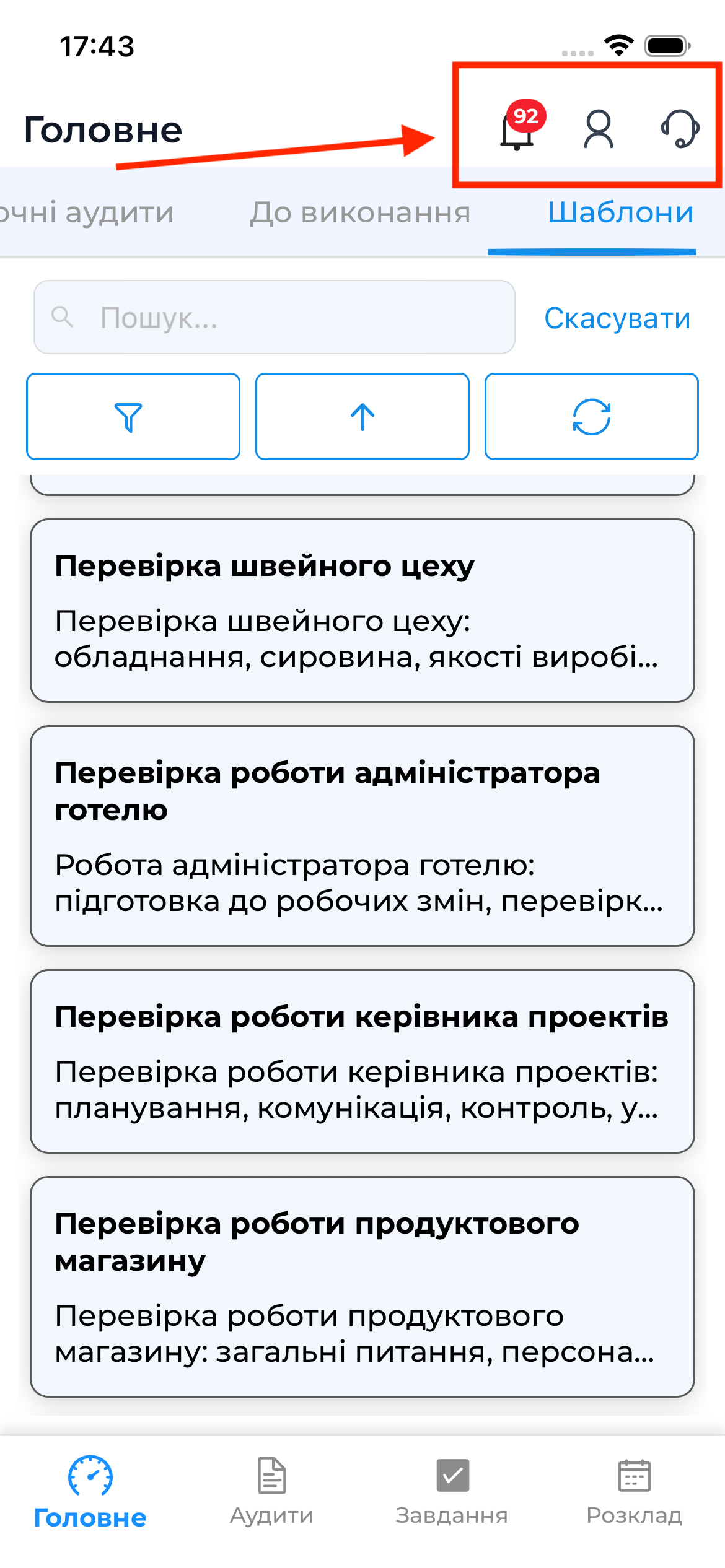
At the top of the screen there is a quick-access bar that includes:
- Notifications icon (bell) — access to in-app notifications
- User profile icon — access to profile settings
- Support icon — access to the list of support requests and communication with support
Main Workspace
The central area of the screen displays:
- audit lists
- tasks
- schedule
- forms for audit preparation and execution
- audit results, reviews, and disputes
The content of this area changes depending on the selected tab or user action.
Bottom Navigation (Tabs)
The bottom navigation is the primary navigation element of the app and is available on all main screens.
The bottom navigation includes the following sections:
- Home
- Audits
- Tasks
- Schedule
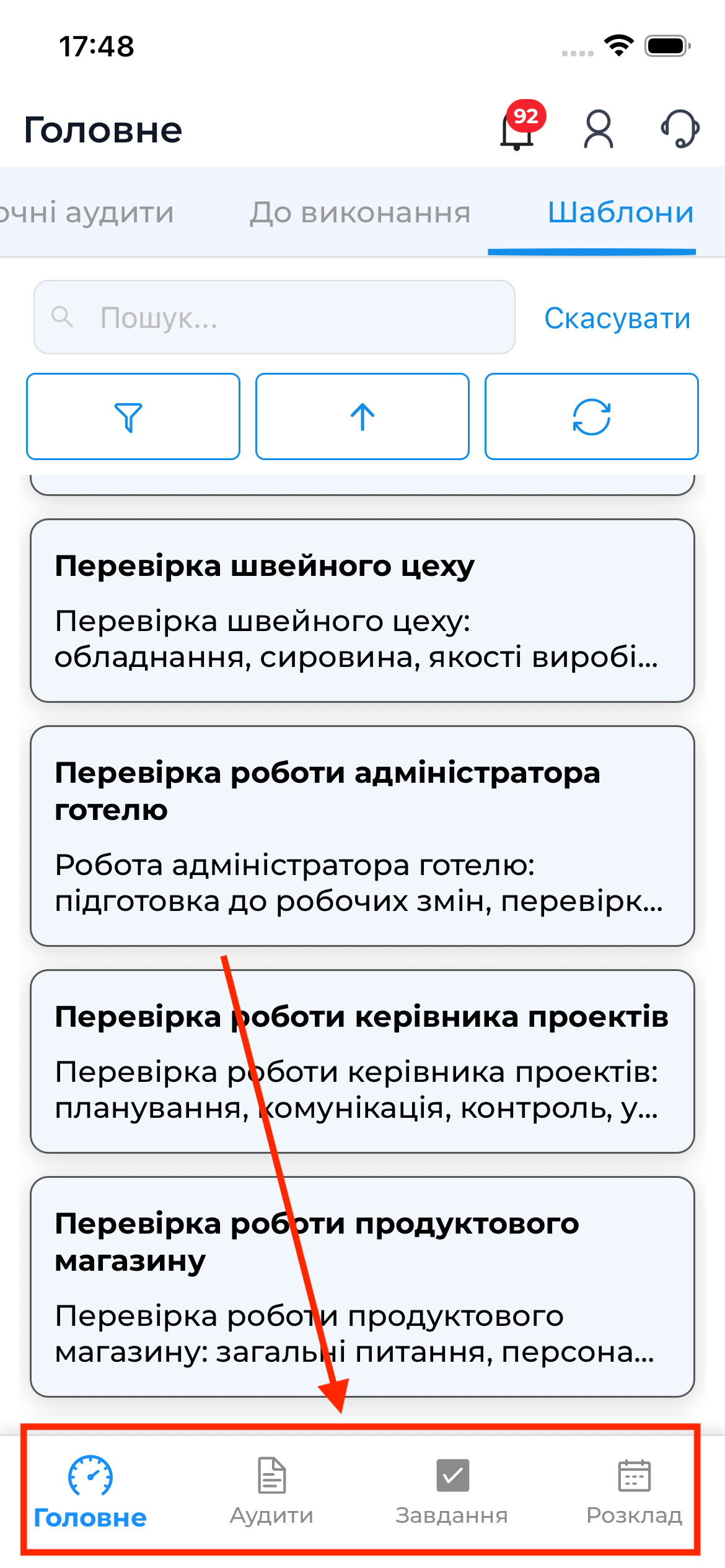
Each tab opens a dedicated section with its own sub-tabs and workflows.
Navigation Logic
- Navigation follows the principle of minimal nesting
- Users can always quickly return to the desired section via the bottom navigation
- Screen transitions occur without reloading the app
- All actions related to conducting audits offline are clearly separated from online functionality
Important to Know
Important
- The interface structure is the same for both iOS and Android
- The behavior of some elements may vary slightly depending on the platform, but the overall logic remains identical
- Without an internet connection, only the audit execution process is available; all other screens require online connectivity
What’s Next
In the following sections of the documentation, you will find detailed descriptions of:
- working with each bottom navigation tab
- audit preparation and execution scenarios
- working with audits, tasks, and the schedule