Bottom Navigation (Tabs)
The bottom navigation is the main navigation element in the AuditBLOOM mobile app.
It is used to move between the key sections of the application.
The bottom navigation is always available on the main screens and allows you to quickly switch between sections without losing context.
Bottom Navigation Structure
The bottom navigation consists of four tabs:
- Home
- Audits
- Tasks
- Schedule
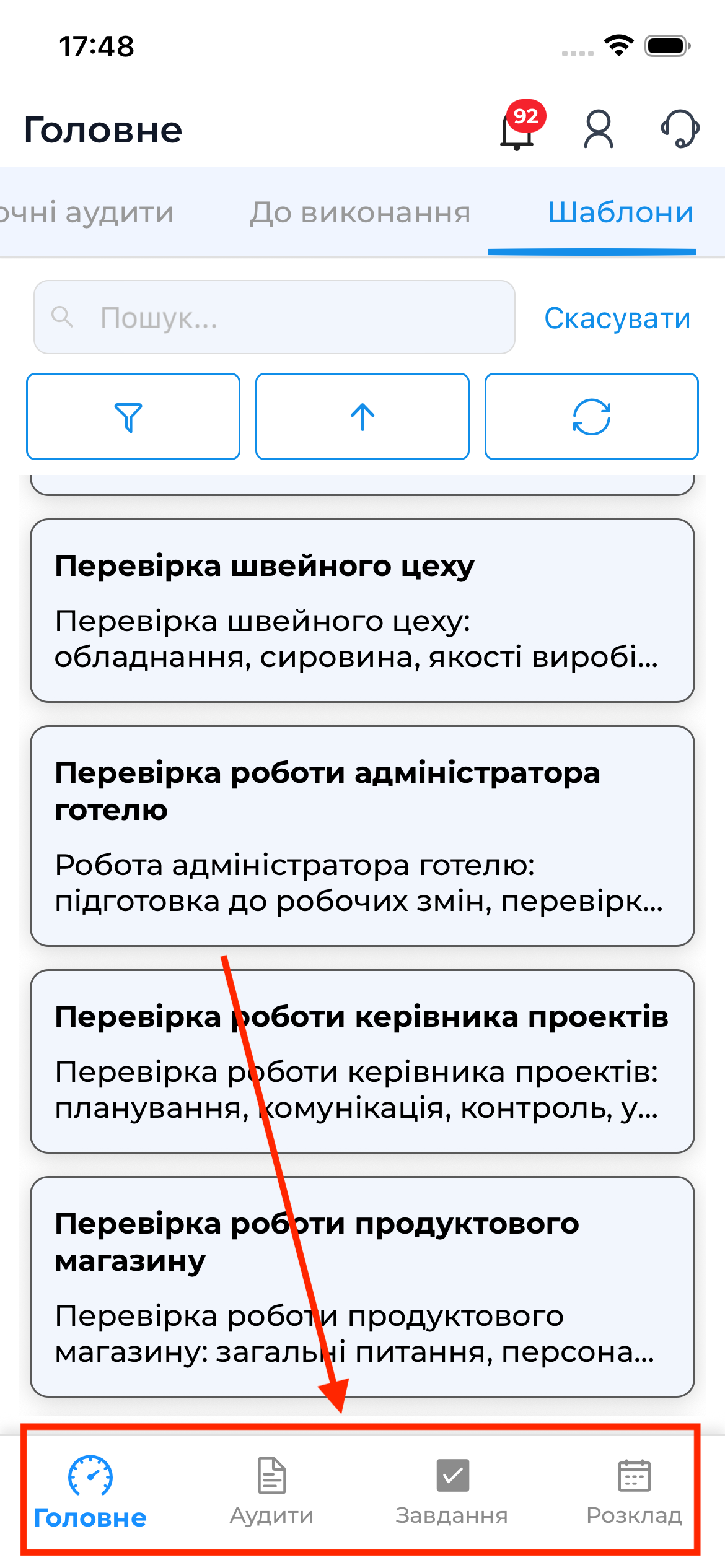
Home Tab
The Home tab is the default screen after signing in to the app.
This tab includes:
- Current Audits
- To Do tab — scheduled audits
- Templates tab — audit templates for preparation and quick start
This tab is used for a fast start when working with audits.
Audits Tab
The Audits tab contains the full list of the user’s audits, grouped by status:
- In Progress
- Pending Review
- Dispute
- Completed
- Archived
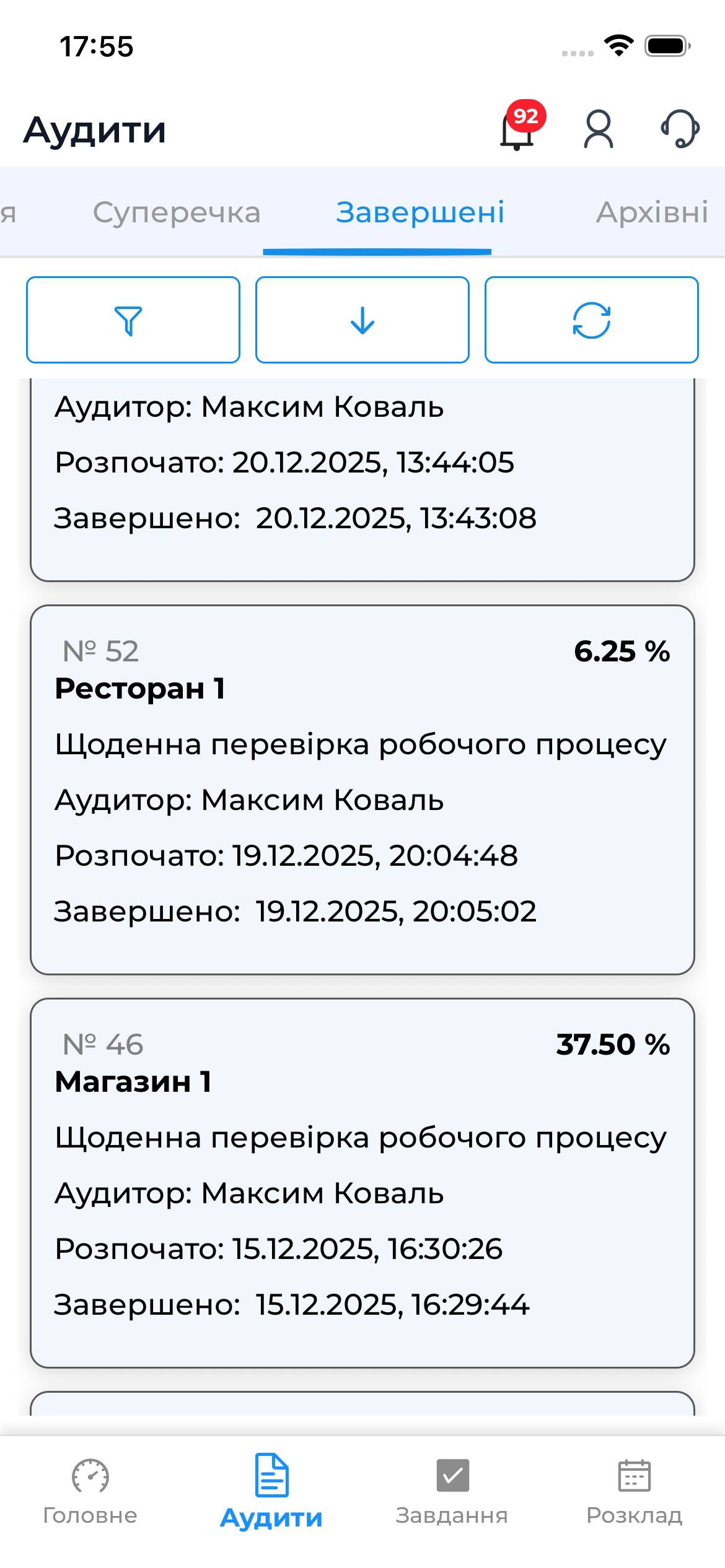
This tab is used to review the status of audits and perform follow-up actions after they are completed.
Tasks Tab
The Tasks tab is designed for working with the user’s personal tasks.
It displays:
- Tasks in progress
- Completed tasks

This tab helps you track the execution of tasks related to audits.
Schedule Tab
The Schedule tab shows the full audit calendar:
- overdue audits
- audits scheduled for today
- audits planned for the next 7 days
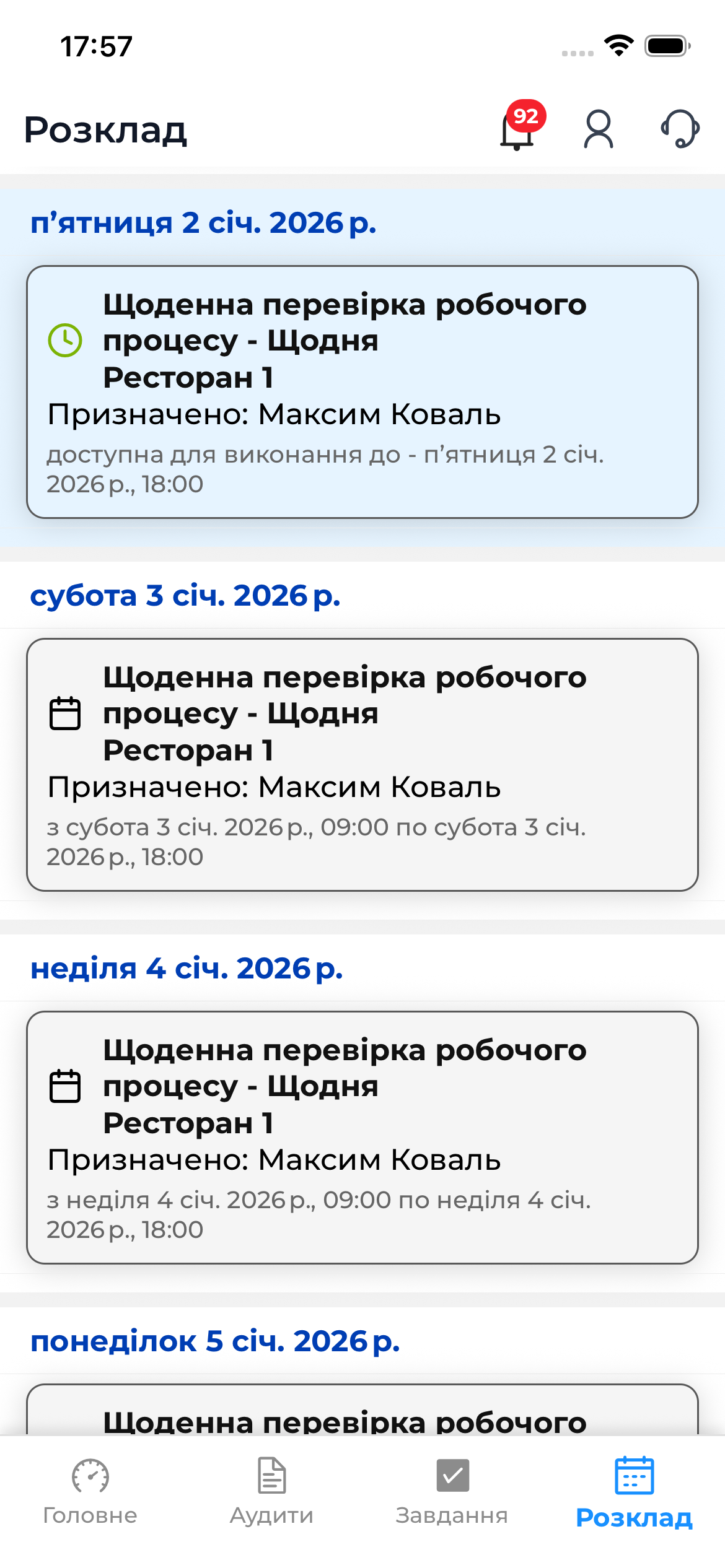
Unlike the To Do block in the Home tab, this section displays the full planning horizon.
Navigation Features
- Switching between tabs does not interrupt active actions
- Screen state is preserved when switching tabs
- The bottom navigation is adapted for different screen sizes
Important to Know
Conducting an audit in offline mode is available only after the audit has been prepared.
Navigation between tabs is limited while in offline mode.