Signing In to the App
Signing in to the AuditBLOOM mobile app is performed using user credentials created in the web version of the system. After a successful sign-in, the user is automatically taken to their working environment.
Core Sign-In Principles
- The mobile app does not have a separate registration
- User accounts are created only in the web version
- After signing in, no workspace selection is required — the user immediately works in their environment
- An active internet connection is required to sign in
Sign-In Process
Step 1. Launch the App
- Open the AuditBLOOM mobile app on your device
- After launch, the sign-in screen will appear
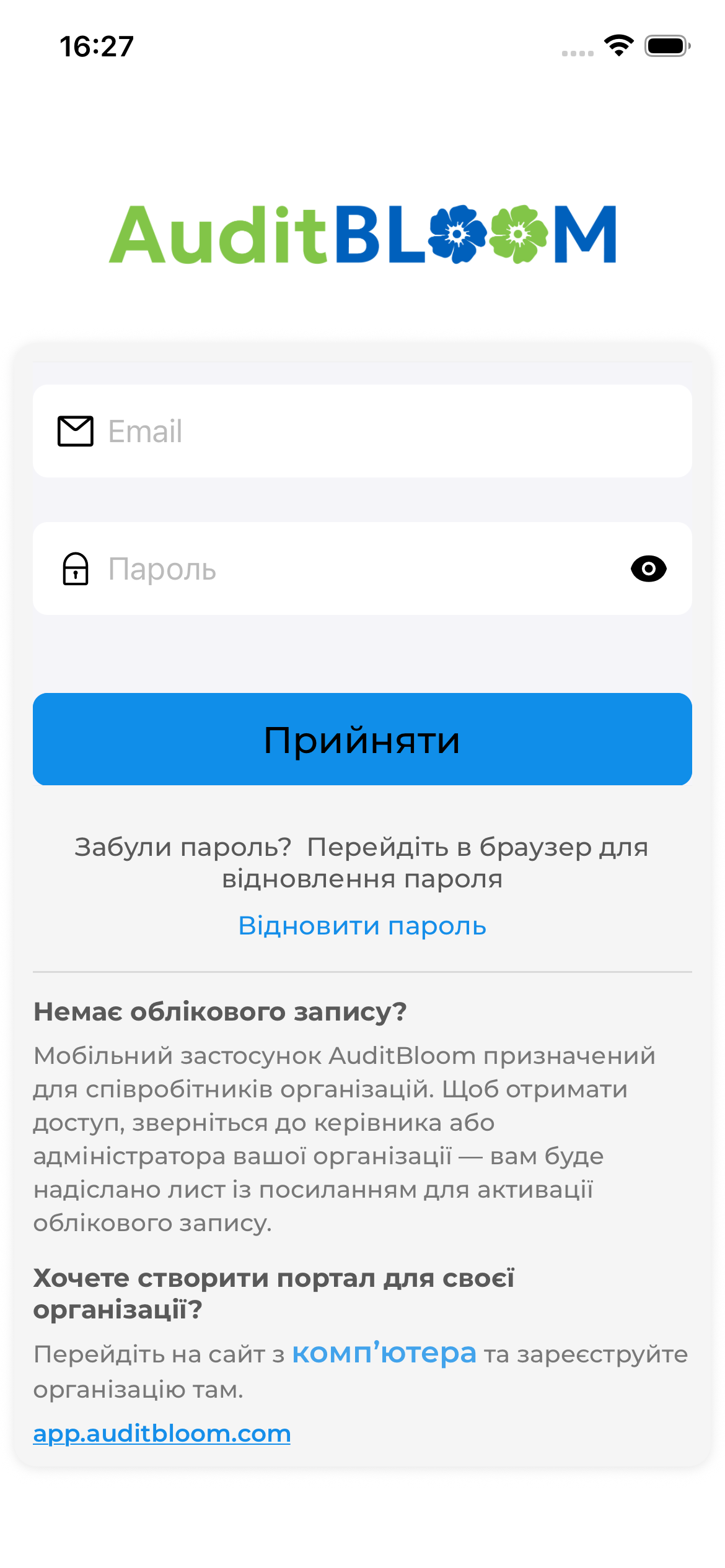
Step 2. Enter Credentials
- Enter your login (email) used in the web version
- Enter your password
- Tap the “Sign In” button
If the credentials are correct, the system will authenticate you and open the main app screen.
Important Limitations
- ❗ Signing in without internet access is not possible
- ❗ If there is no connection, authentication will fail
- ❗ Offline mode is available only after signing in and only for conducting audits
Sign-In Security
- Every sign-in is recorded by the system
- A maximum of two mobile devices is allowed per user
- Connected devices are managed in the web version
Possible Sign-In Issues
- Incorrect login or password — check that the credentials are entered correctly
- No internet connection — verify your network connection
- Device limit exceeded — remove an old device in the web version
After a Successful Sign-In
After authentication, the system:
- automatically opens the “Home” section
- will subsequently request permission to send push notifications
- is ready for audit preparation and execution
ℹ️ Note: If you forgot your password or are experiencing access issues, use the account recovery option in the web version or in the mobile app.