Adding Comments, Photos, and Tasks
During an audit, the auditor can add additional information for each question using comments, photos, and tasks.
This makes it possible to document violations in detail, provide evidence, and initiate follow-up actions.
All these actions are available directly from a checklist question.
Adding a Comment
A comment is used to:
- explain the selected answer
- describe an identified violation
- add additional notes from the auditor
How to Add a Comment
- Navigate to the required checklist question
- Tap the “Comment” button
- Enter the comment text
- Save the changes
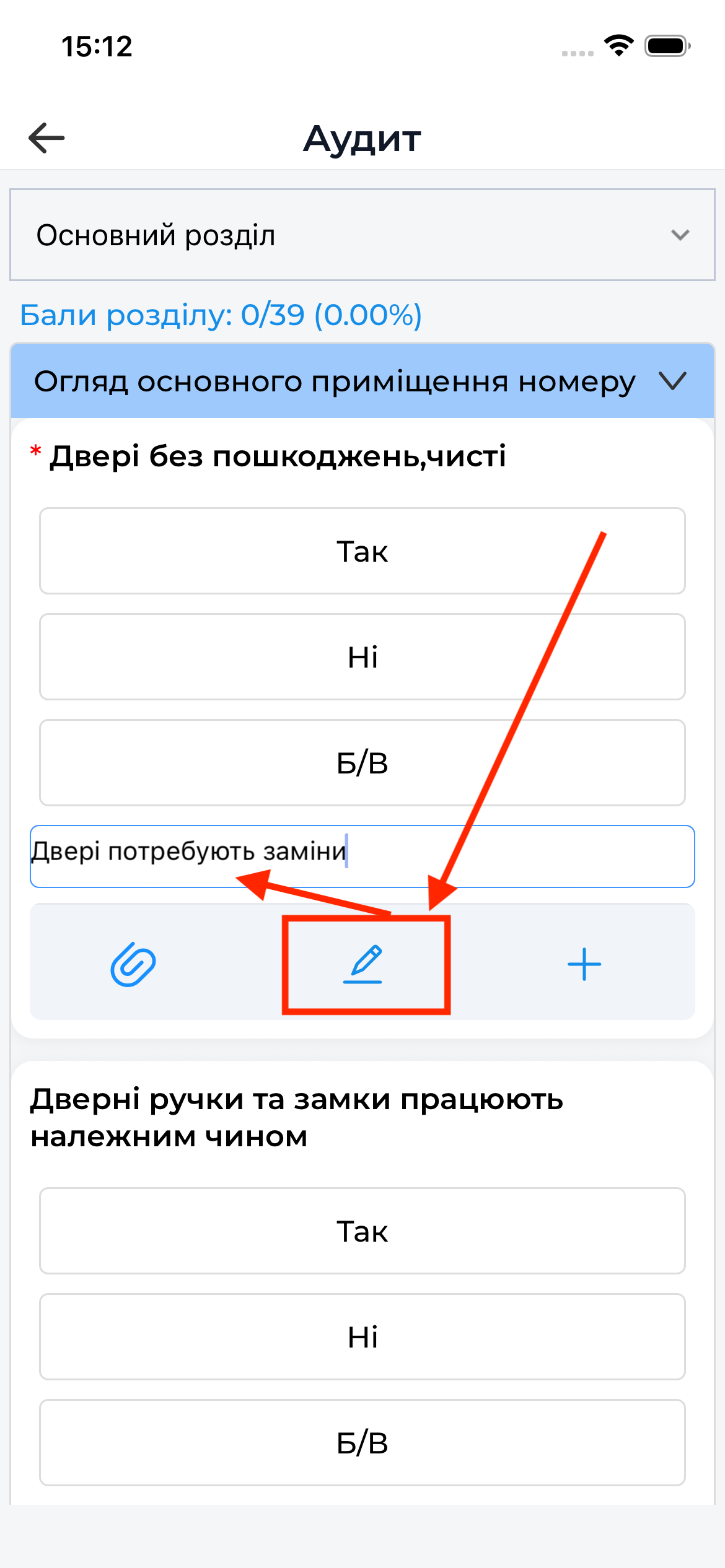
A comment can be mandatory if this is defined in the template settings.
Adding Photos
Photos are used as evidence during the audit.
You can:
- take a photo using the device camera
- add a photo from the gallery (if allowed in the template settings)
How to Add a Photo
- Navigate to the required checklist question
- Tap the “Add Photo” button
- In the menu, choose Take Photo or Select from Gallery
- Take a photo or select it from the gallery
- The photo will be attached to the question
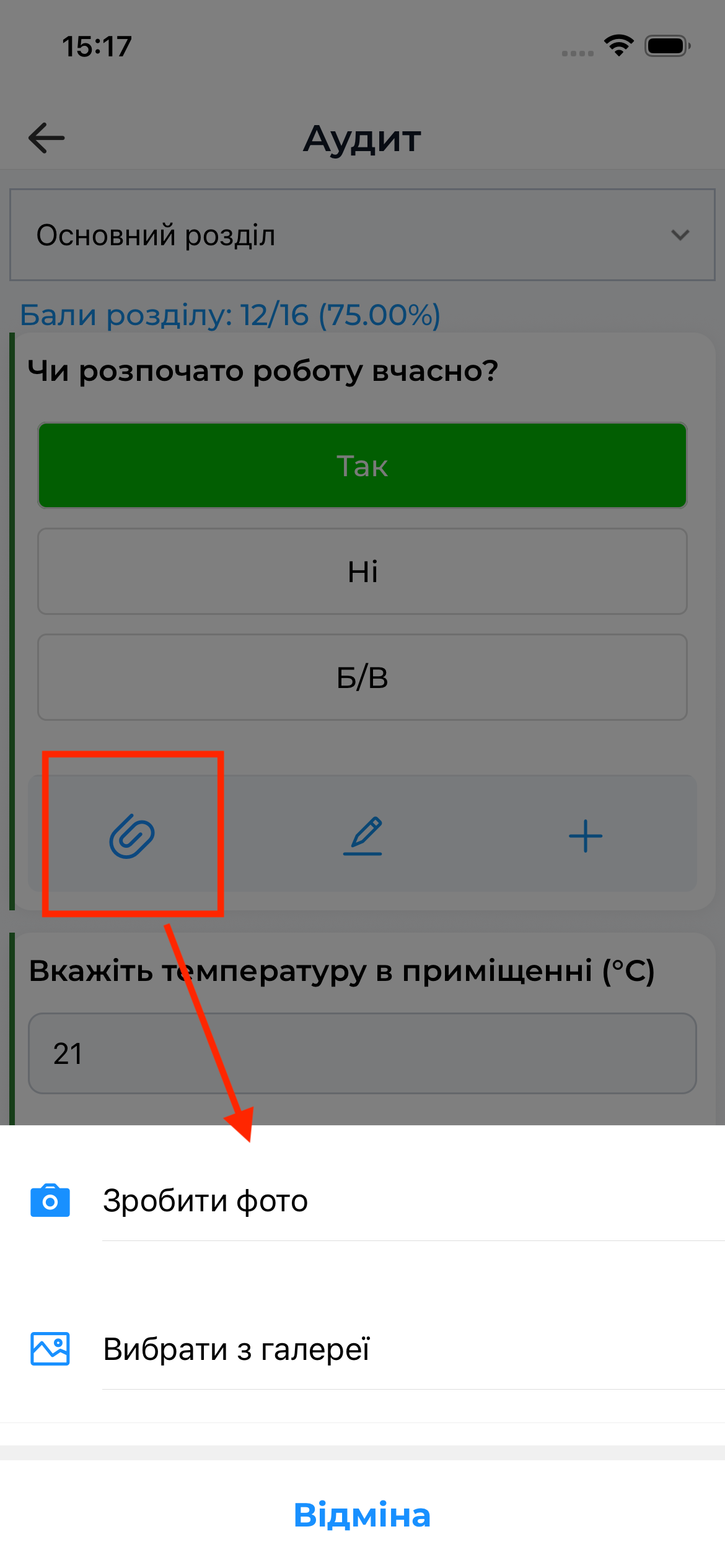
All photos are temporarily stored on the device and will be uploaded to the server during synchronization.
Adding a Task
During an audit, you can create tasks. Tasks can be created for each question.
A task is used to record actions that must be completed after the audit, for example:
- fixing a violation
- performing corrective actions
- other follow-up activities
How to Add a Task
- Within a question, tap “Add Task”
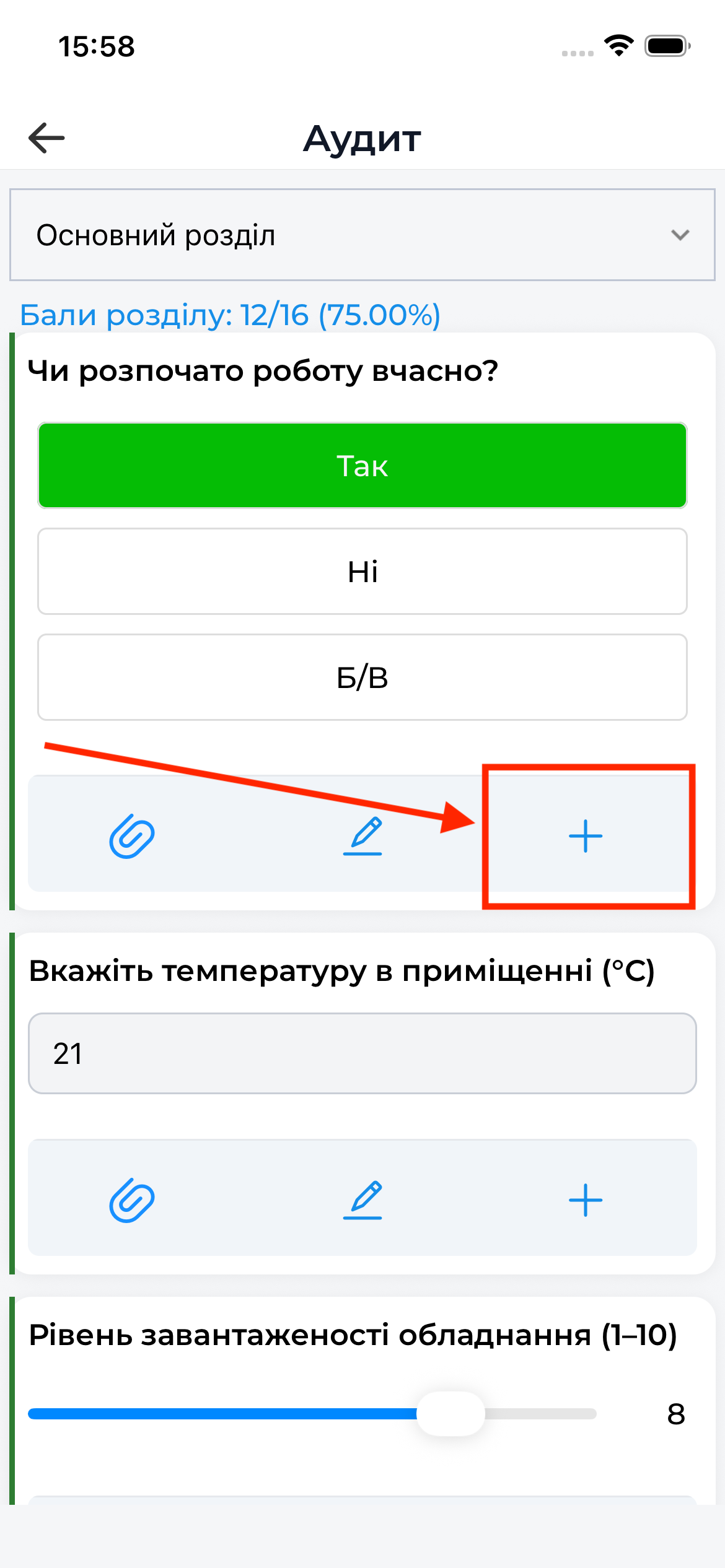
- Enter the task title and description
- Set the priority
- Assign responsible users or user groups
- Set a deadline
- Optionally specify observers
- Save the task
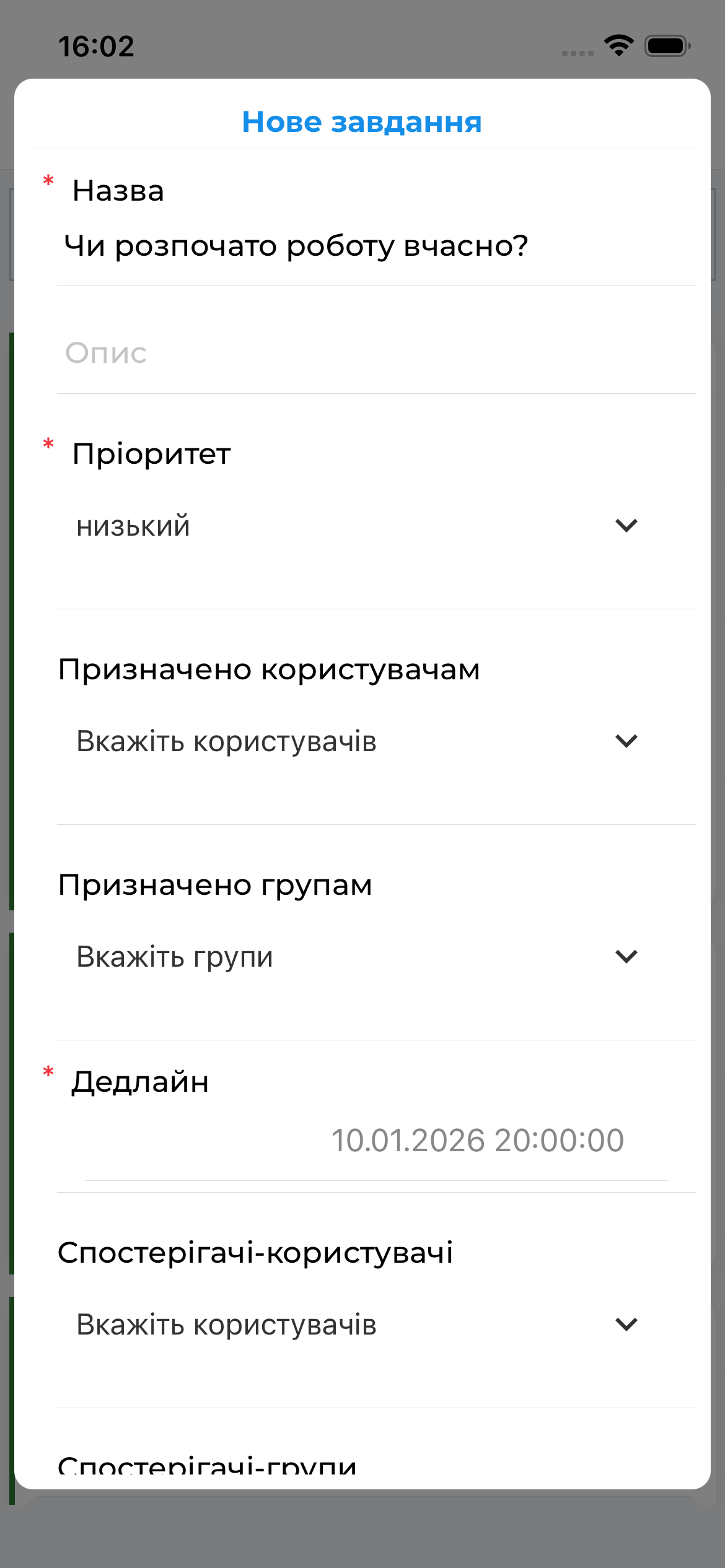
All tasks will be uploaded to the server during synchronization.
Working in Offline Mode
- Comments, photos, and tasks can be added offline
- All information is stored locally
- Data is transmitted during synchronization
Important to Know
- Photos are always uploaded to the server during synchronization
- After synchronization, all photos are automatically removed from the mobile device
- The logic for mandatory comments and photos is defined in the audit template