Completed Audits
Completed audits are audits for which all stages have been fully finished:
execution, review, and dispute resolution (if applicable).
Such audits have a final status and can no longer be modified.
Where to Find Completed Audits
- Go to the “Audits” section in the bottom menu.
- Open the “Completed” tab.
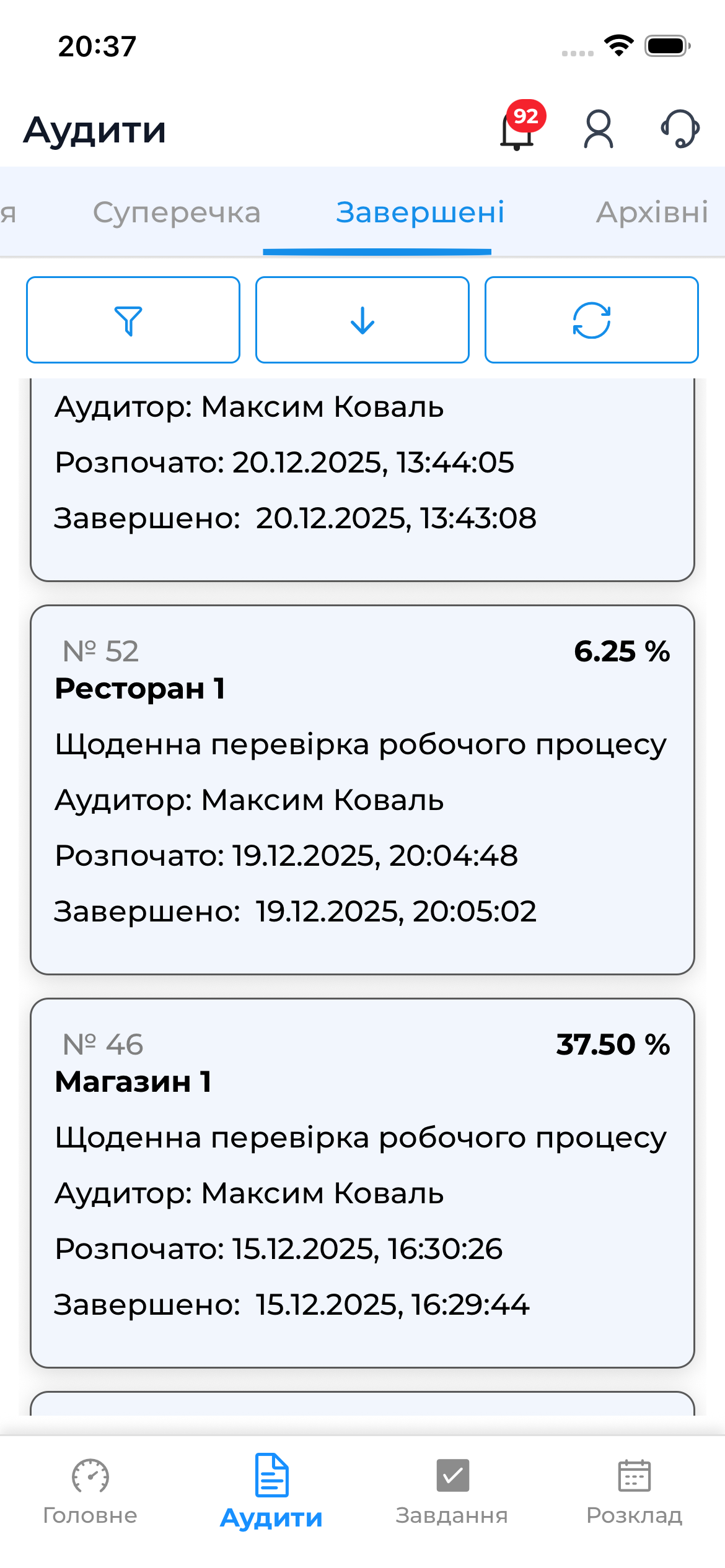
What the “Completed” Status Means
An audit moves to the “Completed” status when:
- the audit has been performed and synchronized;
- the responsible person has reviewed the results (according to the template settings);
- all opened disputes have been resolved or none exist (according to the template settings);
After that:
- scores cannot be changed;
- opening new disputes is not possible;
- the audit is stored as part of the audit history.
Viewing a Completed Audit
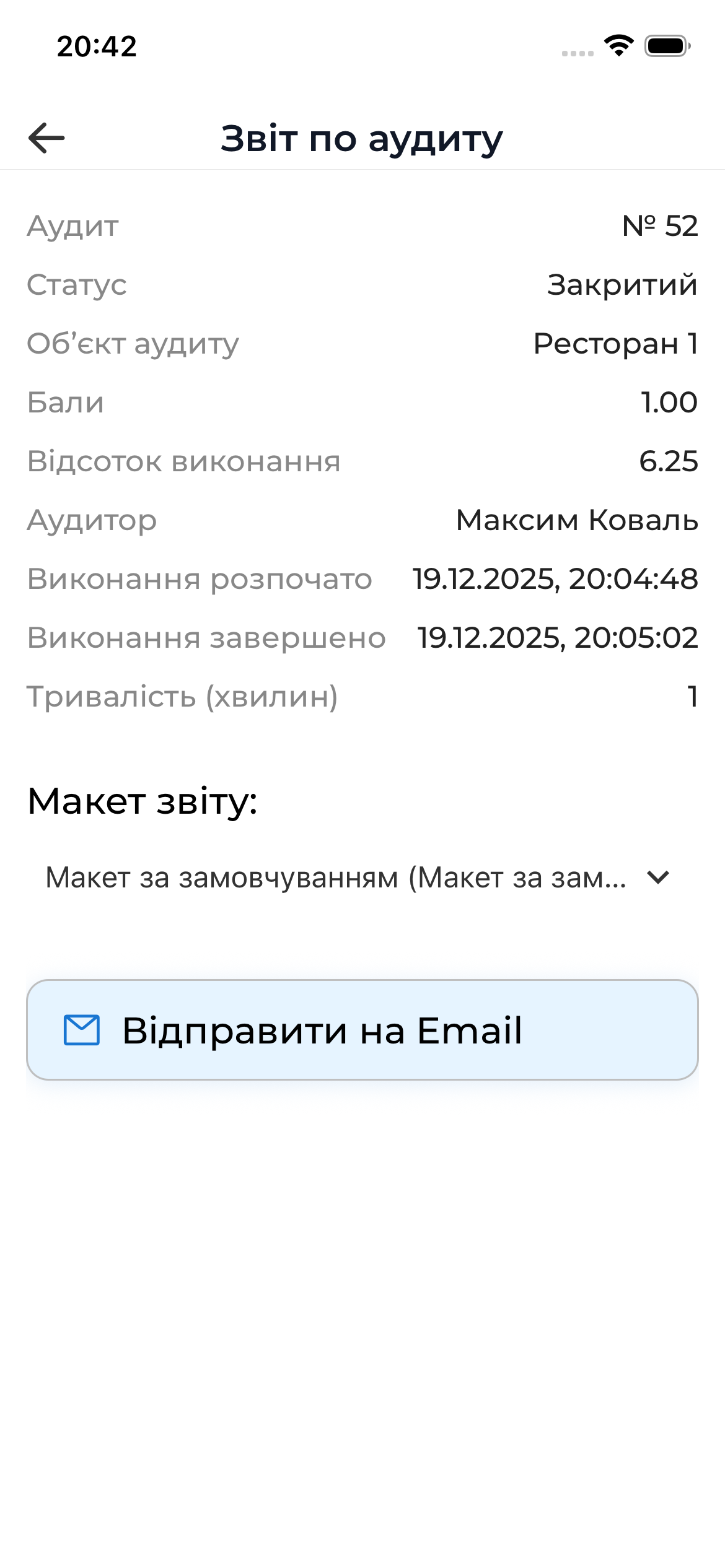
In a completed audit, the following is available:
- viewing the overall result
- information about audit dates and participants
- audit object
- auditor
- audit start and end dates
- duration
- the ability to send the audit report by email according to the selected layout
Restrictions for Completed Audits
For audits with the “Completed” status:
- ❌ answers cannot be changed
- ❌ comments or photos cannot be added
- ❌ disputes cannot be opened or edited
This ensures the integrity and reliability of audit results.
Further Work with Completed Audits
- Completed audits are used for analysis, reporting, and audit history.
- If necessary, an audit can be moved to the archive (in the web version).
- Full functionality for working with results (reports) is available in the web version of the system.
Tip
Regularly analyze completed audits to identify systemic issues and improve processes at audited locations.